Managing WordPress Plugins and Themes Across a Whole Fleet at Once
A serious vulnerability drops in a plugin you know is popular. Somewhere in the back of your mind you’re fairly sure a few client sites run it — but “fairly sure” isn’t good enough when the clock is running, and finding out for certain the old way means opening wp-admin for every single site on your list and checking one by one. That’s exactly the moment fleet-wide plugin visibility stops being a nice-to-have and starts being the thing standing between you and a very bad phone call.
Table of contents
- How fleet-wide plugin management works
- Walking through the actual vulnerability scenario
- Using this for standardization, not just emergencies
- FAQ
- Using this outside of emergency response
How fleet-wide plugin management works
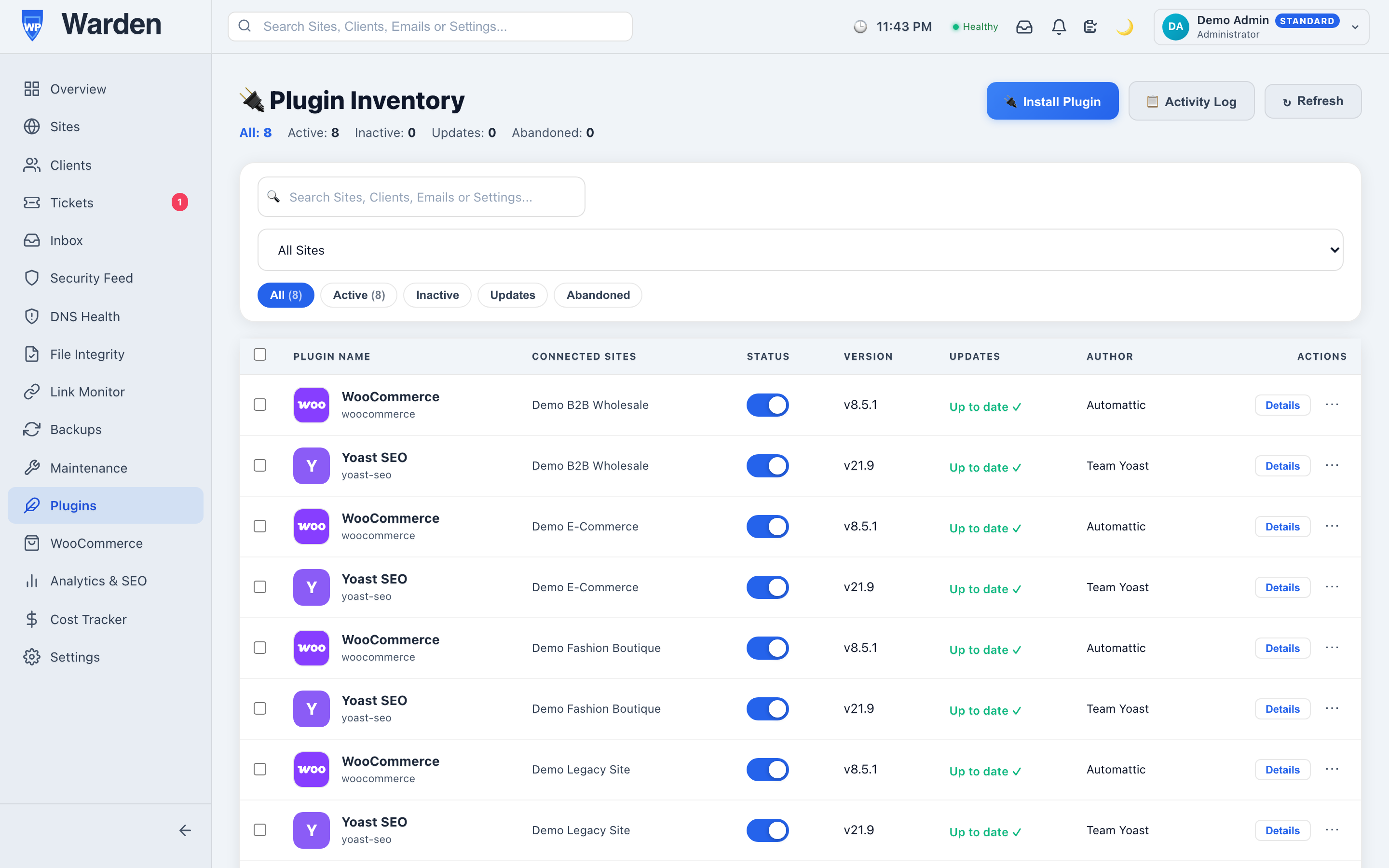
WP Warden’s plugin and theme management shows every installed plugin and theme across your entire fleet in one view, with real icons pulled from the plugin itself or the ps.w.org CDN so you can tell them apart visually rather than parsing a long list of similarly-worded names. Toggling activation, triggering updates, and filtering by status, site, or search text all run through the same reliable command queue that powers every other remote action in WP Warden — nothing about this is a separate, bolted-on system.
Walking through the actual vulnerability scenario
Back to that vulnerability. A quick search across the fleet view answers the only question that matters — which sites actually run this plugin — in seconds, not the better part of an afternoon spent logging in one at a time. From there, updating every affected site happens in the same view, without needing to context-switch into each site’s own admin area at all. The gap between “there’s a CVE out for this” and “every affected site is patched” shrinks from hours to minutes, and that gap is exactly what determines whether you’re ahead of an opportunistic scanner or behind it.
Using this for standardization, not just emergencies
It’s worth using this view outside of an emergency too. A periodic scan of what’s actually installed across a fleet tends to surface things you’d never notice site by site: three different SEO plugins doing the same job across different clients, an abandoned plugin nobody remembers adding, a theme that’s years out of date on a site that otherwise looks fine. None of these are urgent individually, but cleaning them up periodically is a lot easier when you can see the whole pattern at once instead of stumbling onto it by accident on one site.
New plugins reach a site through the same view too — browsing and installing directly from WordPress.org without ever logging into the target site individually.
Using this outside of emergency response
It’s worth scheduling a periodic pass through this view even when nothing’s on fire. A quarterly review of what’s actually installed across a fleet tends to surface small, low-urgency findings that never justify their own investigation individually — an abandoned plugin nobody remembers adding, three different SEO tools doing overlapping jobs across different clients, a theme that’s years behind current. None of it is an emergency. All of it is easier to clean up in a single sweep than to notice one site at a time, months apart, by accident.
FAQ
Can I find every site using a specific plugin instantly?
Yes — real filtering and search across the fleet finds every affected site immediately, without checking each one individually.
Does this replace logging into wp-admin entirely for plugin work?
For activation, updates, and installation, yes — all of it runs through the same remote command channel, with no need to log into the site directly.
Start a free 14-day trial — no credit card required.