Google Analytics for WordPress Agencies: Traffic Data Without a Separate Login
A site has a rough week — a brief outage, some slow response times — and separately, traffic happens to dip during roughly the same period. Nobody connects the two, because one lives in the monitoring dashboard and the other lives in a completely separate Google Analytics property that nobody thought to check that specific week. The correlation was real. It just never got noticed, because it never had a chance to.
Table of contents
- Why health and traffic data usually live apart
- How the connection actually works
- Comparing traffic across a whole client fleet
- FAQ
- What you actually lose without this connection
- Setting this up in practice
Why health and traffic data usually live apart
There’s nothing wrong with Google Analytics itself — it’s the standard for a reason. The problem is purely structural: it lives in its own separate login, its own separate mental context, and checking it requires a deliberate decision to go look, rather than being something that’s simply visible alongside everything else you already check daily. A correlation between a technical issue and a traffic dip only gets noticed if someone happens to check both at the same time, which in practice is rare.
How the connection actually works
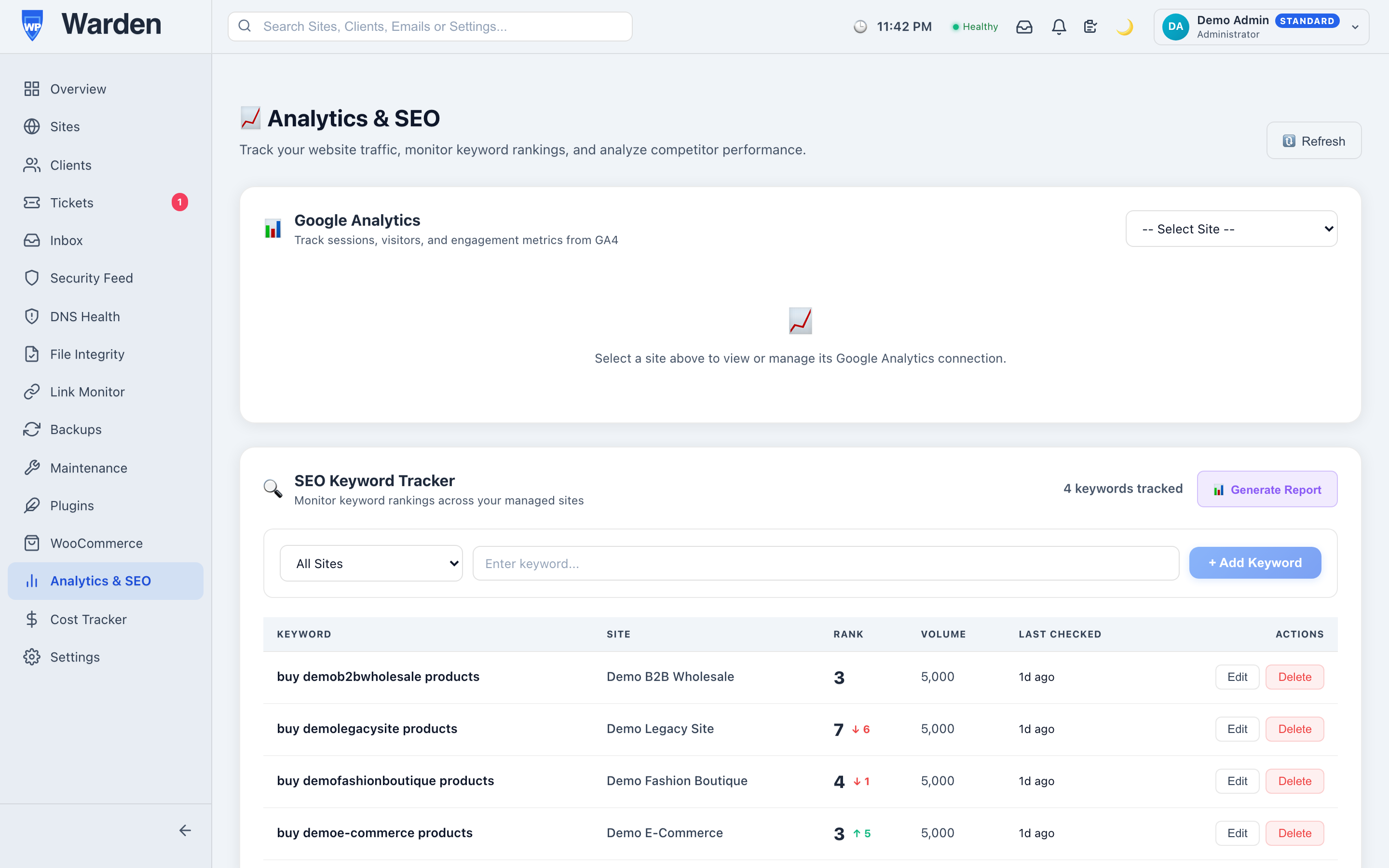
WP Warden’s Google Analytics integration uses a standard OAuth flow — connect a site’s GA4 property once, and a daily sync engine pulls real session and page-view data into the same dashboard where you already monitor that site’s health and uptime. There’s no manual API key to copy and paste, and no need to ever open the separate Google Analytics dashboard for a routine check.
Comparing traffic across a whole client fleet
Beyond catching correlations for a single site, this pays off differently at fleet scale: comparing traffic trends across a dozen client sites without opening a dozen separate Analytics properties turns a genuinely tedious task into something that takes a few minutes. It’s especially useful paired with keyword rank tracking on the same sites — together, rank movement and real traffic tell a fuller story than either one does alone.
What you actually lose without this connection
It’s worth being specific about the actual cost of keeping these two data sources separate, rather than treating it as a minor inconvenience. Without it, a genuine technical incident and a genuine traffic drop can occur in the same week and never get connected in anyone’s mind, because confirming that connection requires actively deciding to open a second tool and compare two timelines by hand — a step busy teams reliably skip. The result isn’t that the data doesn’t exist; it’s that the insight it could have provided quietly never surfaces, and a pattern worth acting on goes unnoticed.
Setting this up in practice
Connecting a site takes a few minutes: authorize access to the relevant GA4 property through the standard Google OAuth screen, and the first sync typically completes within the day. There’s no need to migrate historical data or reconfigure anything on the Google Analytics side — the connection is read-only and additive, meaning your existing GA4 setup, goals, and audiences continue working exactly as they did before, with WP Warden simply given a window into the same data you already collect.
FAQ
Do I need to manually copy an API key from Google?
No — it’s a standard OAuth connection flow, the same kind of “Sign in with Google” authorization used across the web generally.
How often does the data update?
A daily sync engine pulls fresh session and page data automatically, with no manual refresh needed.
Start a free 14-day trial — no credit card required.