WordPress SMTP Configuration for Agencies: Sending Client Email From Your Own Domain
You’ve spent real effort building a white-label experience — your logo on the portal, your colors on the reports, your name on every interaction. Then a client’s monthly report lands in their spam folder because it was sent from a shared, generic domain with no sending reputation attached to your business at all. The branding was right. The plumbing underneath it wasn’t.
Table of contents
- Why a shared sending domain hurts deliverability
- How your own SMTP connection works
- One setup, every email-sending feature
- FAQ
- Confirming it’s actually working, not just configured
- What the actual setup involves
Why a shared sending domain hurts deliverability
Email deliverability is, at its core, a reputation problem. A shared sending domain carries the sending history of everyone who’s ever used it — including anyone whose emails got marked as spam, whether or not that has anything to do with you. Your own domain, by contrast, carries only your own sending history. If you’ve been sending legitimate business email from it for years, that reputation actively works in your favor every time a new message goes out.
How your own SMTP connection works
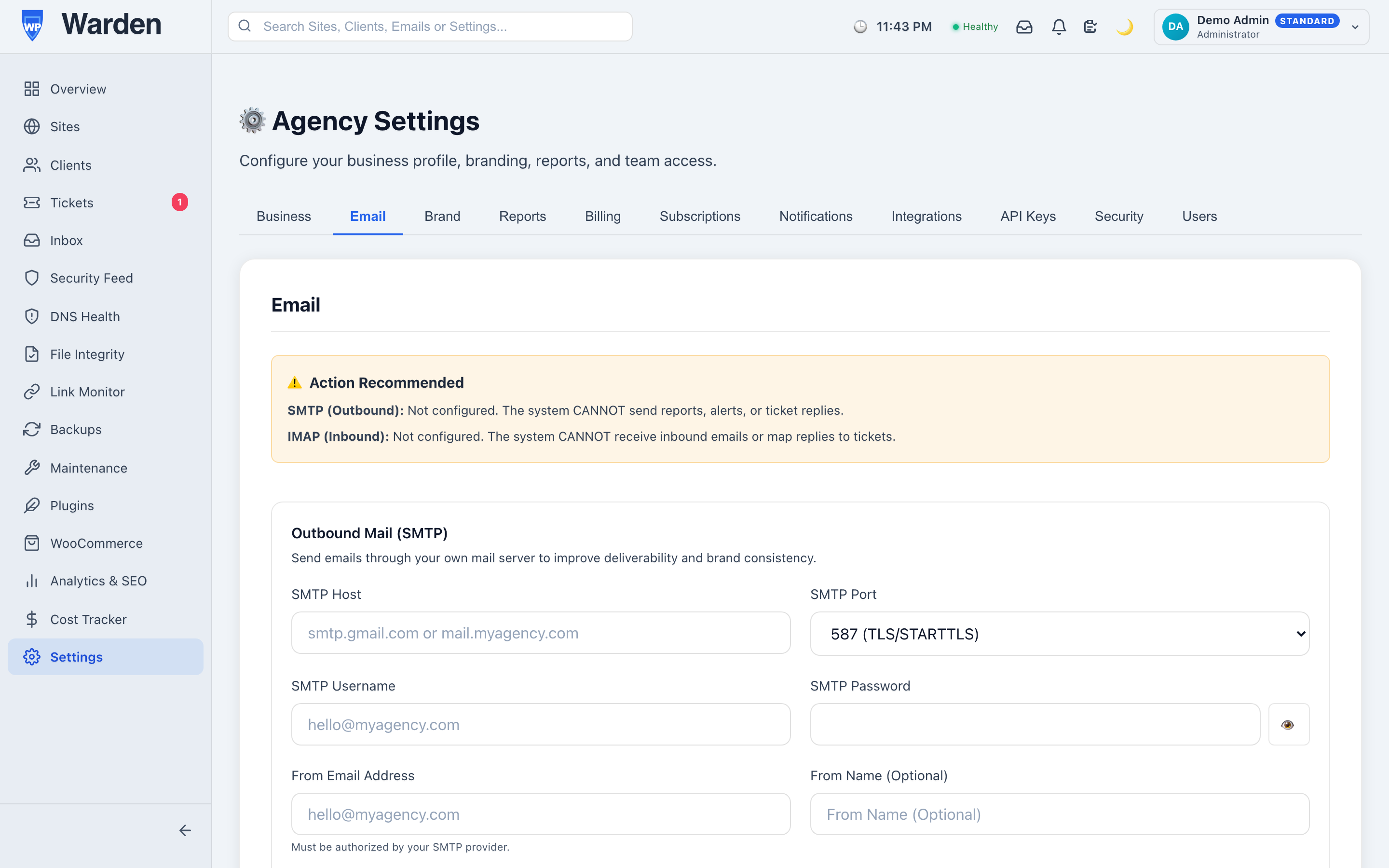
Connect your own SMTP server — host, port, username, password — once in WP Warden’s tenant settings, and every email the platform sends on your behalf, from client reports to alert notifications to ticket replies, goes out through that specific server instead of a generic shared default. Every email landing in a client’s inbox genuinely comes from your own domain, carrying your own reputation with it.
One setup, every email-sending feature
This is a genuine one-time setup, not a per-feature chore. Connect it once, and every feature that sends email — reports, alert notifications, ticket replies — uses it automatically. There’s no risk of configuring three of the four correctly and forgetting the fourth, because there’s only ever one place this gets set.
Confirming it’s actually working, not just configured
Entering SMTP credentials correctly and actually achieving good deliverability are two different milestones, and it’s worth confirming the second one rather than assuming it follows automatically from the first. Sending a real test report or alert to an account you control, and checking it lands in the primary inbox rather than spam, is a five-minute check worth doing once after setup — deliverability problems are far easier to notice and fix immediately than to discover months later when a client mentions they never got last quarter’s reports.
What the actual setup involves
Connecting an existing business email account takes the same handful of fields any email client would ask for — host, port, username, and password, usually available directly from whatever provider already hosts your business email. There’s no need to purchase anything new or set up a dedicated sending service; if you already send business email from your own domain, that’s the exact account this plugs into.
FAQ
Does this affect every email WP Warden sends?
Yes — reports, alert notifications, and ticket replies all route through your connected SMTP server once it’s configured.
Do I need to reconfigure this per feature?
No — one connection covers every email-sending feature on the platform automatically, with nothing further to configure.
Start a free 14-day trial — no credit card required.