A client setting quietly changes overnight. Nobody remembers making the change, and asking around the team gets you three different guesses and no real answer. This is the exact moment a real activity log earns its keep — and the exact moment its absence turns a five-minute question into an afternoon of speculation.
Teams tend to assume they’ll remember who changed what, right up until they need to and can’t. It’s not a character flaw — it’s just what happens when dozens of small changes across dozens of sites blur together over weeks. “Who did this” is a question that should have a documented answer, not one that depends on someone’s recollection of a Tuesday three weeks ago.
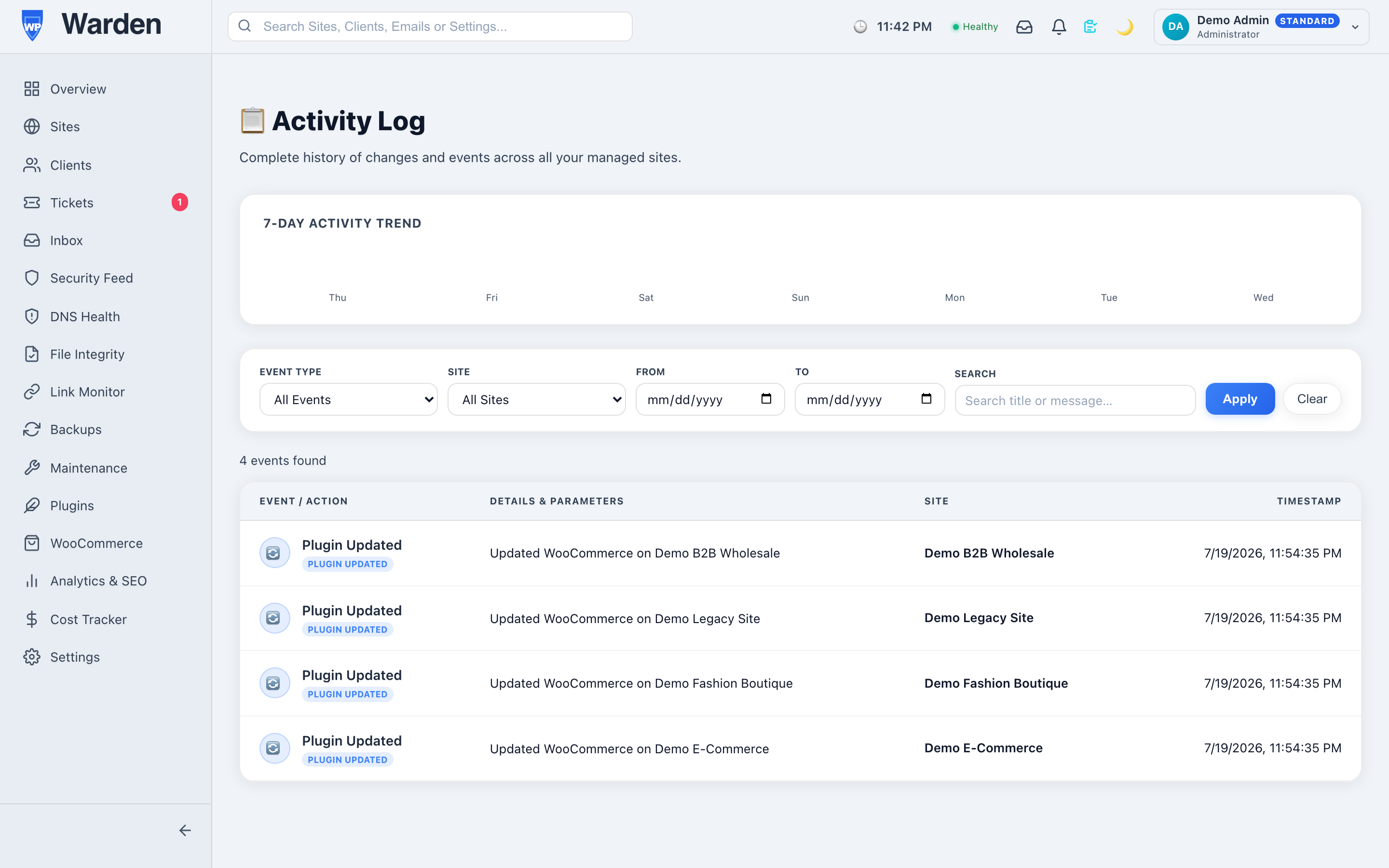
Every meaningful action a human takes in the WP Warden dashboard — updating a site, deleting an alert, changing a setting, adding a new team member — is logged in the activity and audit log with who did it, when, and exactly what changed, tied directly to the real user accounts managed under team management. There’s no ambiguity about whose action this was, because the log was built to answer that specific question by design.
An audit log you can edit after the fact isn’t really an audit log — it’s just a log, with all the same trust problems a shared spreadsheet has. The entire value of this record is that it can’t be cleaned up, reordered, or quietly amended later. That’s what makes it usable in a compliance review or a difficult client conversation: it reflects what genuinely happened, not a version of events someone had the chance to tidy up afterward.
A client’s report schedule mysteriously changes from weekly to monthly, and the client notices before anyone on the team does. Without an audit log, this becomes a round of asking everyone individually whether they touched that setting, with no guarantee anyone actually remembers a small change made weeks earlier. With the log, it’s a search: filter by that client’s settings, find the exact change, the exact person, the exact timestamp — and the conversation with the client becomes “here’s what happened and here’s the fix” instead of “we’re not sure, but we’ll look into it.”
It’s easy to think of an audit log purely as a tool for damage control, but it’s just as useful for entirely mundane confirmation — verifying a specific update was actually applied when it was supposed to be, or confirming a new team member’s first few changes went smoothly during onboarding. Most of the time nothing has gone wrong at all; the log is simply there, quietly making “what actually happened” a fact rather than a guess whenever it’s needed.
No — it’s designed as a permanent record specifically so it can’t be cleaned up or altered after the fact by anyone.
Yes — a documented, immutable record of every administrative action is exactly what’s needed to demonstrate accountability to a client or an auditor.
Start a free 14-day trial — no credit card required.
Hiding the login page is a good default for practically every WordPress site — it takes it out of the pool of automated bot traffic that assumes the default URL and never even discovers your site individually. But there’s a category of situation where hiding isn’t enough: an active security incident, where the honest answer to “who should be able to log in right now” is genuinely nobody, not even you, until the situation is understood.
Hiding the login page deters opportunistic scanning — automated tools that assume the default /wp-login.php URL and never discover the real one. It does nothing, by design, to a session that’s already authenticated, and that’s exactly the gap that matters during an active incident: if an attacker already has valid credentials or a live session, moving the login URL doesn’t touch them at all.
WP Warden’s ability to disable admin access is deliberately stricter: switching it on blocks wp-admin and wp-login.php outright, including sessions that are already authenticated. It’s controlled remotely from the dashboard, and taking effect requires no server access — which matters specifically because the whole point of using it is speed during a moment where every extra minute counts against you.
The clearest case is a suspected compromise where you haven’t yet confirmed the scope of the problem. Locking wp-admin immediately, before doing anything else, means nobody — including a compromised account you haven’t identified yet — can make further changes while you investigate. It’s also genuinely useful for a planned maintenance window where multiple team members have access and you want a hard guarantee that no one, including a well-meaning teammate, makes an unplanned change mid-window. Throughout all of this, the public site keeps working exactly as normal: wp-cron, admin-ajax, admin-post, and the REST API stay reachable, so visitors never see any of it.
A file integrity alert fires, suggesting a possible compromise, and the immediate instinct is to start investigating right away. The better first move is locking wp-admin entirely, before doing anything else — because if the account making changes to investigate is itself compromised, every action taken during that investigation risks making things worse rather than better. With admin access fully disabled, the site is frozen exactly as it was found, the public site keeps running untouched, and the investigation can proceed methodically rather than under pressure to move fast before anyone else touches anything.
Yes — that’s what makes it stricter than login-page hiding; an already-authenticated session doesn’t bypass it.
Yes — only wp-admin and wp-login.php are blocked; the front end keeps serving visitors normally throughout.
Start a free 14-day trial — no credit card required.
A data subject request lands — someone wants everything you have on them exported, or wants their account gone entirely — and if there’s no real process for this, it becomes an engineer manually writing a database query under time pressure, hoping they’ve found every table that references that person’s data. That’s a genuinely risky way to handle something that should be routine and boring.
The risk with handling data requests by hand isn’t usually bad intent — it’s inconsistency. One request handled by one team member might genuinely capture everything; the same request a month later, handled by someone else under a different amount of time pressure, might miss something. Neither person did anything wrong exactly, but the outcome is unpredictable in a domain where predictability is the entire point.
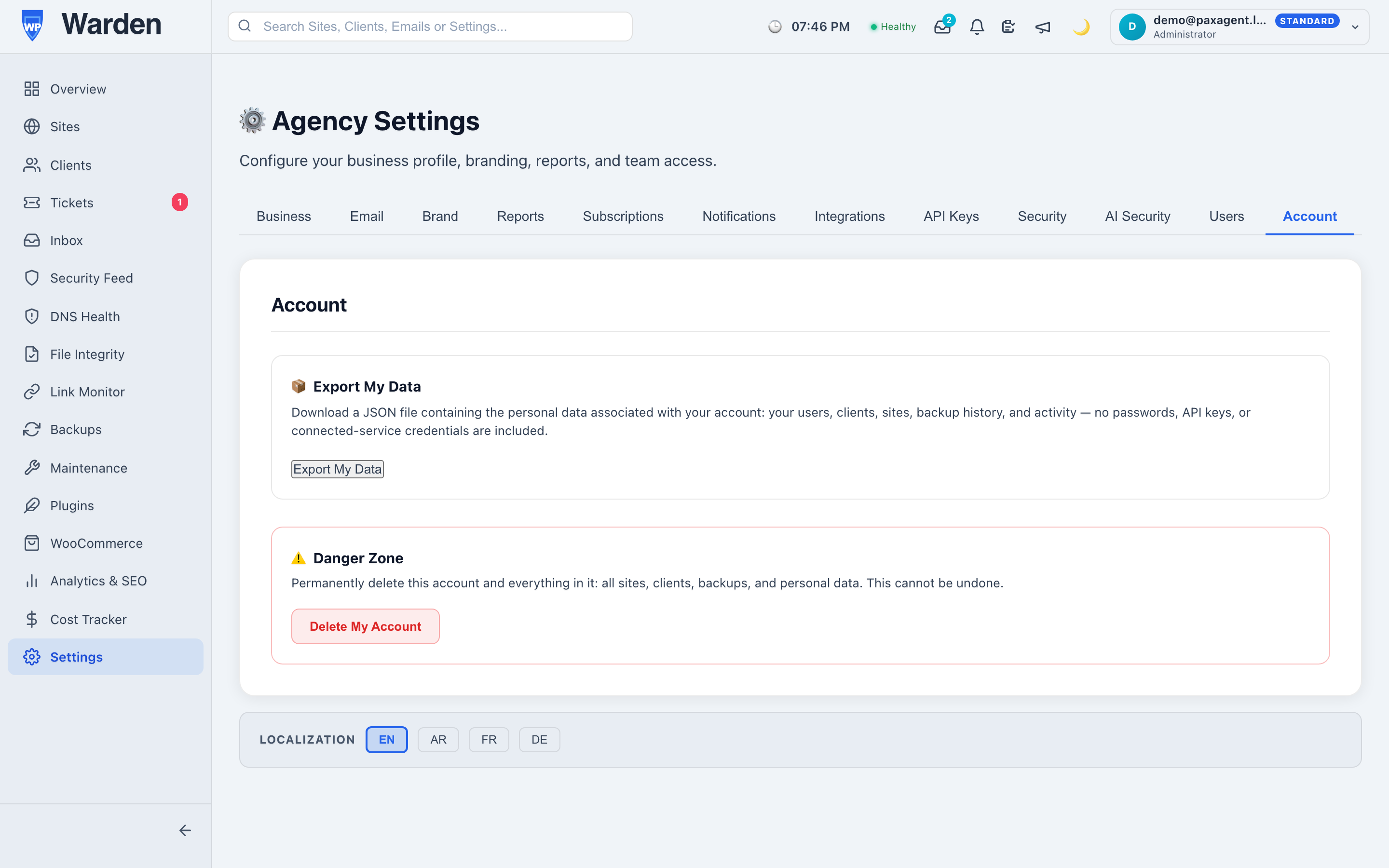
WP Warden’s GDPR compliance tools live directly in account settings, giving users a self-serve way to export their own data or request account erasure, rather than requiring a manual support request handled by hand every single time. Because it’s the same tested path every time, the outcome is consistent regardless of who’s on the team that day, or how busy things happen to be.
Most security and compliance work is judged on whether it prevented something bad from happening — hard to see, easy to take for granted. Data request handling is judged differently: it’s judged on whether the same request, handled twice by two different people, produces the same correct outcome both times. Building that consistency into the settings screen itself, rather than into institutional memory or a document someone has to remember to follow, is what actually makes it dependable.
A well-handled data request is, ideally, boring — the person submits it, receives confirmation, and the outcome is exactly what was promised, without anyone on the team needing to be involved at all beyond the initial setup. That’s a deliberately unglamorous goal, but it’s the right one: the measure of a good compliance process isn’t how impressive it looks, it’s how little anyone has to think about it once it’s in place, and how confident you can be that the same reliable outcome happens every time regardless of who’s on the team that week.
Compliance tooling is the kind of thing that’s easy to deprioritize right up until an actual request arrives with a real deadline attached. Having self-serve export and erasure already available means the first real request is handled the same calm, routine way as the hundredth — rather than being the moment someone scrambles to figure out how this is even supposed to work in the first place.
Yes — a self-serve export option lives directly in account settings, available whenever a user wants it.
No — it’s a self-serve option built into the same settings area, not a manual request that has to be processed individually by a team member.
Start a free 14-day trial — no credit card required.
A stolen or guessed password is still, by a wide margin, one of the most common ways a WordPress admin account gets compromised. WordPress two-factor authentication closes almost all of that risk with one setting: even a correct password isn’t enough to log in without also having the second factor, which is exactly what a remote attacker never has.
Passwords fail in ways that have nothing to do with how strong they are: reused across a personal account that gets breached elsewhere, phished through a convincing fake login page, or simply guessed through automated brute-force attempts against common patterns. Two-factor authentication doesn’t make any of those attacks impossible, but it makes a stolen password alone worthless to an attacker — they’d also need the authenticator app or device generating the second code, which almost never travels with a leaked password.
WP Warden’s two-factor authentication supports both a TOTP authenticator app (Google Authenticator, Authy, or similar) and an email-based code as a second method. TOTP is the stronger of the two — the code is generated locally on your device and never travels over email, so it isn’t exposed if an email inbox itself gets compromised. Email codes are still meaningfully better than no second factor at all, and are a reasonable fallback for a user who doesn’t want to install an authenticator app, but treat them as the lighter option rather than the default recommendation.
The most common real-world 2FA problem isn’t an attacker — it’s a legitimate user locked out of their own account because they lost their phone or switched devices without transferring their authenticator app. Backup codes, generated when you enable 2FA and regenerable at any time, exist specifically for this. Save them somewhere durable and separate from the device generating your regular codes — a password manager’s secure notes, not a text file on the same phone.
2FA is enabled per user, not forced across an entire team automatically — worth knowing going in, since it means adoption is a checklist item for you to actually follow up on, not a switch that flips for everyone at once. Start with administrator accounts first, since those carry the most damage if compromised and the people holding them are usually the most comfortable troubleshooting a setup hiccup. Once that’s solid, work outward to editor and author roles. Trying to roll it out to every role simultaneously on day one is where most of the support friction happens.
Two-factor authentication protects the login itself; session controls protect what happens after. WP Warden’s account security settings add auto-logout on an idle timeout and a concurrent-session limit per account, so a forgotten logged-in session on a shared or public computer doesn’t stay valid indefinitely. Neither replaces 2FA — a stolen active session bypasses login entirely — but together they cover both “getting in” and “staying in” as separate risks worth closing.
Not as an automatic org-wide enforcement setting today — each user turns it on individually. Treat rolling it out as a standing item in your own security checklist rather than something that happens on its own once you personally enable it.
This is exactly why backup codes need to live somewhere other than the same device as your authenticator app — a password manager, not a note on the same phone. Losing both at once is the scenario worth actively planning against, not one to discover the hard way.
It adds one extra step — entering a six-digit code after your password — which takes a few seconds once you’re used to it. Weighed against what a compromised admin account actually costs an agency, that’s a small, one-time habit change for a real reduction in risk.
Start a free 14-day trial and turn on two-factor authentication for every admin account today.
Point any automated scanner at a WordPress site and it will try /wp-login.php within the first few requests — it’s the single most predictable URL on the entire platform. Learning how to hide your WordPress login page removes that predictability entirely, and pairing it with a stricter full admin lockout for genuine emergencies covers two very different levels of the same problem.
Every unmodified WordPress install has its login form at the same predictable path. Automated brute-force tools don’t need to discover this — they assume it and start hammering it immediately, testing common username/password combinations around the clock, with no human ever choosing your specific site as a target. A large share of that traffic is entirely untargeted, which is exactly why a simple change to the login URL is disproportionately effective: it doesn’t stop a determined, targeted attacker, but it silently drops your site out of the pool that opportunistic, automated scanning ever reaches.
WP Warden’s login page hiding doesn’t rename any file on your server. It intercepts requests early: an anonymous visit to the real /wp-login.php or /wp-admin gets a plain 404, as if nothing were ever there, while a separate, secret URL you choose quietly routes through to the real login form. Anyone already logged in is never affected — this only changes what an anonymous visitor sees.
Disabling admin access entirely is a different, stronger action — and deliberately so. Where login-page hiding only affects anonymous visitors, a full admin lockout blocks wp-admin and wp-login.php outright, including sessions that are already logged in and even your own masked login URL if you have both enabled. This isn’t a bug or an overlap between the two features; it’s the intended behavior for a specific situation: a site under active attack, a suspected compromise being investigated, or a maintenance window where nobody — including you — should be making changes through wp-admin until it’s lifted.
Neither feature touches the parts of WordPress that need to keep running regardless of who’s locked out: wp-cron.php, admin-ajax.php, admin-post.php, and the REST API all stay reachable. That matters because plenty of front-end functionality — scheduled posts, AJAX-powered forms, anything built on the REST API — depends on those endpoints, and locking them along with the admin area would break the live site for visitors, not just protect the back end.
The obvious worry with either feature is locking yourself out with no way back in short of FTP or a hosting control panel. Both are designed around that exact fear: they’re toggled remotely through WP Warden itself, over the same connection the site already uses to check in, and turning either off takes effect within a few minutes — no server access, no support ticket to your host, no waiting on a stuck request. If you ever do lock yourself out, the fix is a dashboard toggle, not a recovery mission.
Moving your WordPress login page off the default URL removes the easy, opportunistic attacks — but it isn’t a complete defense against someone who’s genuinely targeting your specific site and finds the real URL some other way (a leaked link, a misconfigured plugin exposing it, a targeted phishing attempt). That’s exactly why it’s worth pairing with two-factor authentication: hiding the login page cuts down who even gets a chance to try logging in, and 2FA makes a correct password alone worthless to whoever does. Neither one is redundant with the other — they close different parts of the same overall risk.
It’s a reasonable default for most sites — the downside is minimal (remembering or bookmarking one custom URL) and the upside (dropping out of opportunistic automated scanning) applies to essentially every public WordPress site regardless of size or traffic.
When you specifically want nobody — including a legitimate but possibly-compromised session — accessing wp-admin at all, such as during an active incident investigation. It’s a short-term, situational tool, not something to leave permanently enabled the way login-page hiding often is.
A plugin or theme hardcoding a direct link to /wp-login.php for an anonymous visitor would hit the same 404 a bot does — worth a quick check on any custom “member login” links in your theme after enabling this, though the vast majority of normal WordPress login flows go through the standard route this feature is built to handle correctly.
Start a free 14-day trial and take your login page off the list of things bots can find.
A plugin with a published, known vulnerability sitting on a client’s site isn’t a hypothetical risk — it’s a documented weakness that anyone can look up, and automated attacks specifically search for sites running the exact vulnerable version. WordPress vulnerability scanning exists to tell you that before an attacker finds it first, which only works if you understand what a CVE feed is actually telling you and what it isn’t.
A CVE (Common Vulnerabilities and Exposures) is a publicly documented, uniquely identified security flaw — in this context, one found in a specific WordPress plugin, theme, or core version. Once published, a CVE is public information anyone can search, which cuts both ways: it lets a scanner warn you proactively, and it also means an attacker doesn’t need to discover anything themselves — they can simply search for sites still running the affected version.
Most CVEs only affect a specific version range — “Plugin X, versions 2.0 through 2.4,” for example, with the fix shipping in 2.5. A useful scanner has to compare your actual installed version against that range, not just flag every site that has the plugin installed at all. WP Warden’s vulnerability scanning does real semantic version comparison against the affected range on its default free data source, so a site already updated past the vulnerable version correctly shows as not affected rather than triggering a false alarm every time that plugin’s name appears anywhere in a CVE database.
The default, free data source runs a daily scan with accurate version-range matching, as described above. An optional paid upgrade to a dedicated vulnerability intelligence provider adds faster-moving, more frequently updated data — but it’s worth knowing the trade-off honestly rather than assuming “paid” is strictly more precise in every dimension: that path’s plugin-to-CVE matching works by plugin slug rather than confirmed version range, meaning any site with the plugin installed at all can surface a match, independent of whether your specific installed version is actually the vulnerable one. Faster, broader awareness and precise version-scoped confirmation are two different strengths — worth treating a paid-source finding as a prompt to check your actual version, not as confirmation you’re affected.
“Virtual patch” is a term worth understanding precisely rather than assuming it means active blocking happening on your behalf. When it appears on a finding, it’s a status label passed through from the vulnerability data provider indicating that provider offers (or has already deployed, if you use their protection product directly) a rule that mitigates the issue without needing the plugin itself updated. On its own, seeing this label doesn’t mean anything is actively intercepting the exploit for you — it’s informational context about the vulnerability’s broader protection landscape, not a description of code running on your site. The vulnerability itself, and its real severity, doesn’t change because a virtual patch exists somewhere; updating the actual plugin remains the real fix.
No — they answer different questions. Vulnerability scanning tells you a plugin has a known, publicly documented weakness before anyone has necessarily exploited it on your site. Malware detection looks for evidence that a site has already been compromised. A clean malware scan and an active vulnerability finding can both be true on the same site at the same time.
The free default source refreshes daily. A paid upgrade path syncs more frequently, which matters most in the narrow window right after a CVE is first published — that’s when un-updated sites are most exposed and most actively targeted.
Weigh the vulnerability’s real severity against what the plugin does for the site. For anything genuinely critical with no fix in sight, temporarily deactivating the plugin is a reasonable trade-off until a patched version ships — a lost feature is recoverable; a compromised site often isn’t, cleanly.
Start a free 14-day trial and know which of your sites are actually exposed, not just which ones need updates.
A client’s password reset emails start landing in spam, or don’t arrive at all, and the WordPress install itself is completely innocent — the problem is sitting in DNS records nobody’s looked at since the domain was registered. WordPress DNS health checks catch exactly this class of problem: the ones that have nothing to do with plugins or themes and everything to do with whether the domain is configured the way mail servers and browsers expect.
DNS and email authentication live outside WordPress entirely, which is exactly why they’re easy to forget about once a site launches. Nobody logs into wp-admin to check an SPF record. But when a client complains that their contact-form notification emails aren’t arriving, or a hosting migration quietly drops a DKIM record nobody remembered configuring, the agency is the one who gets the call — whether or not the actual fix happens inside WordPress. Treating DNS as part of ongoing site health, not a one-time setup task at launch, is what DNS health monitoring is for.
These three records exist to answer one question for every receiving mail server: is this email actually allowed to claim it’s from this domain?
A DMARC policy set to reject failing mail is a stronger, more deliberate stance than one set to none, which mostly just monitors without enforcing anything — worth knowing which one a given domain actually has, since “DMARC exists” and “DMARC is doing something” aren’t the same claim.
Email authentication is only part of the picture. A healthy domain also needs its A record actually resolving to the right server, an MX record correctly routing incoming mail, and at least two nameservers responding — a domain running on a single NS record is one host-side hiccup away from becoming completely unreachable. None of this is exotic, but it’s exactly the kind of configuration that’s set once during launch or migration and never checked again unless something breaks.
DNS health isn’t only about mail. A valid SSL certificate that isn’t close to expiring, a working HTTP-to-HTTPS redirect, and an HSTS header telling browsers to always use HTTPS for the domain going forward all matter for the same reason SPF and DKIM do — they’re infrastructure-level settings that WordPress itself doesn’t manage or warn you about, but that directly affect whether visitors see a security warning instead of the site they came for.
DNS changes don’t take effect everywhere at once — different resolvers around the internet cache records for different lengths of time, so a record that looks correct from one location can still be stale somewhere else. Checking resolution against several independent public resolvers rather than just one is what actually confirms a DNS change has finished propagating everywhere, instead of just where you happened to check from.
A single combined score is useful for triage across a fleet — sorting which of forty client domains need attention first — but it’s worth understanding roughly what it’s built from before treating a mid-range score as an emergency. SSL and email authentication typically carry the most weight, since those are the two categories most likely to visibly affect a real visitor or a real email landing in an inbox. A domain missing DKIM but otherwise clean will show a meaningfully lower score than one with every category in good shape — that’s the score doing its job, not a false alarm, but it’s still one specific fix (add the DKIM record) rather than a sign the whole domain is unhealthy.
Worth being direct about a real limitation: DKIM detection works by checking a handful of the most common selector names hosts and email providers actually use. A provider using a genuinely custom, non-standard selector may show as “not found” even if DKIM is technically configured — a good reason to treat a DKIM finding as a prompt to verify manually rather than the final word, the same way you’d double-check any automated scan before telling a client something is broken.
No — DNS and email authentication records live at the domain registrar or DNS host, not inside wp-admin. WordPress plugins that handle outbound mail (an SMTP plugin, for instance) benefit from correct SPF/DKIM/DMARC records, but they don’t create or manage those records themselves.
More often than most agencies assume — a hosting migration, a switch to a new email provider, or a DNS host’s own interface change can all silently drop or alter a record nobody remembers touching. This is exactly why DNS health is worth checking on an ongoing basis rather than once at launch and never again.
Not universally — a brochure site that sends almost no outbound email has less riding on a strict DMARC reject policy than a client relying heavily on WordPress-triggered emails (order confirmations, lead notifications, password resets). Prioritize fixes on sites where broken email deliverability actually costs the client something.
Start a free 14-day trial and see your fleet’s real DNS health today, not just its WordPress health.
A security scanner flags a file as suspicious. Is it actually malware, or is it a legitimate plugin doing something unusual-looking but harmless? Deciding that by eye means opening the file, reading obfuscated code, and making a judgment call — for every flag, on every site, every week. AI-assisted WordPress security verification exists to take that second read off your plate without asking you to trust a black box you can’t inspect or control.
Signature and pattern-based malware scanning has a structural trade-off: cast a wide enough net to catch real obfuscated threats, and you’ll also catch legitimate code that happens to use similar-looking techniques — a plugin that legitimately uses eval() for a caching mechanism, or a theme that dynamically builds function names for a completely ordinary reason. Every one of those flags needs a human to look at it and decide, and that decision-making time is exactly what doesn’t scale as a fleet grows past a handful of sites. AI verification exists to absorb that first pass of judgment calls before they reach you.
WP Warden’s AI-assisted security verification doesn’t run on a shared, WP Warden-owned AI model. Instead, you connect your own API key from Claude, OpenAI, or Gemini — or point it at your own OpenAI-compatible endpoint if you’re running something like a local model — and every verification call goes directly from WP Warden’s backend to that provider, using your account. Usage is billed by the provider to you, not marked up or resold, and the key itself is encrypted at rest and only decrypted server-side at the moment a call is actually made.
The reason this matters more than it might first appear: it means no third party — including WP Warden itself — sits in the middle deciding what model runs, what it costs, or what happens to the data in between. You’re reading your own provider’s output, through your own account, under whatever data-handling terms you already agreed to with that provider.
Worth being precise here rather than vague: a verification call sends the file path, the reason the scanner flagged it in the first place (which signature matched, its severity and confidence), and a capped excerpt of the file itself — up to 8KB around the flagged content, not the entire file and never anything from a backup archive. For the overwhelming majority of real flags, a malicious code snippet is a few lines, not a few thousand, so an 8KB window is enough context for a real judgment call without uploading a client’s entire codebase to a third party for every scan.
The response is deliberately narrow: a verdict of malicious, benign, or uncertain, a suggested next step (quarantine, delete, or no action needed), and a short plain-language explanation of why. It does not write remediation code, and it does not hand back a confidence percentage to anchor on — an “uncertain” verdict means exactly that, a case still genuinely worth a human look, not a number to round up or down. Treat it the way you’d treat a second reviewer’s opinion: useful, worth weighing seriously, and not a replacement for your own judgment on the cases it flags as unclear.
It’s worth being clear about what this feature is not: it doesn’t scan a site on its own, and it isn’t a replacement for file integrity and malware protection‘s actual detection work. AI verification only ever re-checks something the deterministic scanner already flagged — it’s a second pass on an existing finding, running automatically on a schedule and available as a manual “verify with AI” action, not a standalone scanning engine in its own right. That division of labor is deliberate: pattern-based scanning is fast, cheap, and consistent at finding candidates; a language model is better suited to the harder problem of judging context and intent on the candidates that pattern-matching alone can’t confidently resolve.
Two guardrails keep this from turning into a surprise bill or an unbounded blast radius. First, calls default to the fast, inexpensive tier of each provider’s models rather than their most expensive flagship — appropriate for a narrow classification task like this, and meaningfully cheaper to run across a fleet. Second, there’s a daily cap on how many verification calls run per tenant by default, plus a zone allowlist restricting which parts of a site’s filesystem are eligible for this kind of check at all (core, plugins, themes, uploads, and mu-plugins — not arbitrary paths). Both are there so connecting an API key means predictable, bounded usage, not an open tap.
The verdict and explanation are stored against the finding in your own account so you can review it later — that part is expected and necessary for the feature to be useful. What doesn’t happen is the call being routed through any WP Warden-owned AI infrastructure or shared model; the request goes straight from the backend to your chosen provider using your key.
For a narrow classification task like this — is this specific flagged snippet malicious or not — the difference between Claude, OpenAI, and Gemini’s fast-tier models matters far less than for open-ended writing or reasoning tasks. Pick whichever provider you already have an account and comfort level with; a local or self-hosted OpenAI-compatible endpoint is also supported if keeping everything off third-party infrastructure entirely matters more to you than model quality.
Nothing breaks — the deterministic scanner keeps running exactly as it does today, flagging findings for you to review manually. AI verification is an optional second opinion on top of that scanner’s own findings, not a dependency the core scanning relies on, and you can connect a key later without losing any scan history from before you did.
Start a free 14-day trial and connect your own key when you’re ready for a second opinion on every flag.
“Is this site infected?” is a harder question than it sounds, and it’s the question behind every serious WordPress malware removal effort. Most WordPress malware isn’t a suspicious file sitting in an obvious folder — it’s a few lines of obfuscated code hidden inside a legitimate-looking plugin file, or worse, injected directly into the database where a file scanner will never look. Here’s how real detection actually works, and what to do once you find something.
There are three places worth checking for any real WordPress malware removal process, and most tools only check the first one:
Most malware doesn’t sit around in plain text. It’s base64-encoded, gzip-compressed, or built dynamically at runtime specifically to dodge simple keyword scans. A real detection system needs to catch patterns like encoded eval() calls, dynamically-constructed function names, and scripts loaded from domains that don’t belong on an allowlist — not just search for a list of known-bad strings. The OWASP Top 10 is a good general reference for the class of injection techniques modern WordPress malware borrows from.
To actually catch all three hiding spots above, a proper WordPress malware removal and detection workflow needs:
This is exactly what WP Warden’s file integrity and malware protection covers — hash baselining, content-pattern scanning, database scanning, and a live front-page self-check, all running automatically.
Automated scanning should be your first line of defense, but a few symptoms are worth a manual look even if a scan comes back clean:
A common real-world pattern: a fake plugin gets installed with an innocuous name — something like “SEO Optimizer Pro” or “Cache Helper” — that does nothing visible but quietly writes a malicious script into a theme’s footer option on activation. A file scan of the plugin itself might even come back clean if the actual payload lives entirely in the database, written once and never touched again. This is precisely why database scanning isn’t optional if you actually want reliable WordPress malware removal rather than a scan that only catches the easy cases.
Another common pattern involves core file impersonation — a malicious file named something like wp-cron-helper.php or a slightly misspelled core filename, sitting directly in wp-includes/ or wp-admin/ where an unfamiliar eye would assume it belongs. Hash-based baselining catches this immediately, since the file simply doesn’t match anything in the official WordPress core manifest.
There are two honest options once a real finding shows up in a WordPress malware removal workflow, and picking the wrong one is worse than doing nothing:
Never restore something just because it “seems fine now” — only restore once you’re actually sure it was a false positive.
Some findings are genuinely ambiguous — obfuscated code that could be a legitimate (if ugly) plugin technique, or could be exactly what it looks like. WP Warden’s AI-assisted security verification lets you connect your own Claude, OpenAI, or Gemini key to get a second read on anything the scanner already flagged, catching obfuscated cases that pure signature matching misses, without sending your site’s code to a third party you don’t control.
Removing an active infection matters, but most agencies get infected the same way more than once if the underlying cause isn’t addressed. The most common root causes are an outdated plugin with a known, published vulnerability, a weak or reused admin password, and a nulled/pirated premium plugin with a backdoor baked in from the source. Vulnerability scanning and two-factor authentication address the first two directly; the third only has one real fix, which is never installing software from outside the official WordPress.org repository or a vendor’s own site.
With real file integrity and database scanning already in place, identifying the affected file or option is usually immediate — the scan already tells you exactly what changed. Without that baseline, manual investigation can take anywhere from an hour to several days depending on how well-hidden the injection is.
Yes, if the entry point that let it in the first place is still open — an unpatched plugin, a weak password, or a backdoor left in a separate file the initial cleanup missed. Removing the visible symptom without finding the cause is the single most common reason a site gets reinfected within weeks.
Only if it covers all three hiding spots described above — files, database, and live rendered output. A scanner limited to files will consistently miss database-stored injections, which are increasingly common precisely because they evade that exact blind spot.
Usually not. Quarantining a specific infected file, or commenting out a specific malicious database value, both happen without taking the whole site down. A full offline maintenance window is really only necessary for a severe, widespread compromise where the extent of the damage isn’t yet known.
Start a free 14-day trial and run your first scan today.