Ask why a fleet management platform even needs a plugin installed on every site, and the honest answer is that something has to actually reach the site — securely, reliably, without slowing it down. That one narrow job is the entire reason this plugin exists, and it’s worth understanding exactly how deliberately narrow it stays.
A lot of WordPress management tools take the opposite approach: one heavy plugin that tries to do everything — scanning, analysis, reporting — locally, on the site itself. That adds real, measurable load to every single site it’s installed on, and that cost multiplies by however many sites are in the fleet. A deliberately thin bridge, with the actual intelligence living centrally in a backend, avoids that entirely: the site does almost nothing extra, and the heavy lifting happens somewhere that doesn’t affect page load for a real visitor.
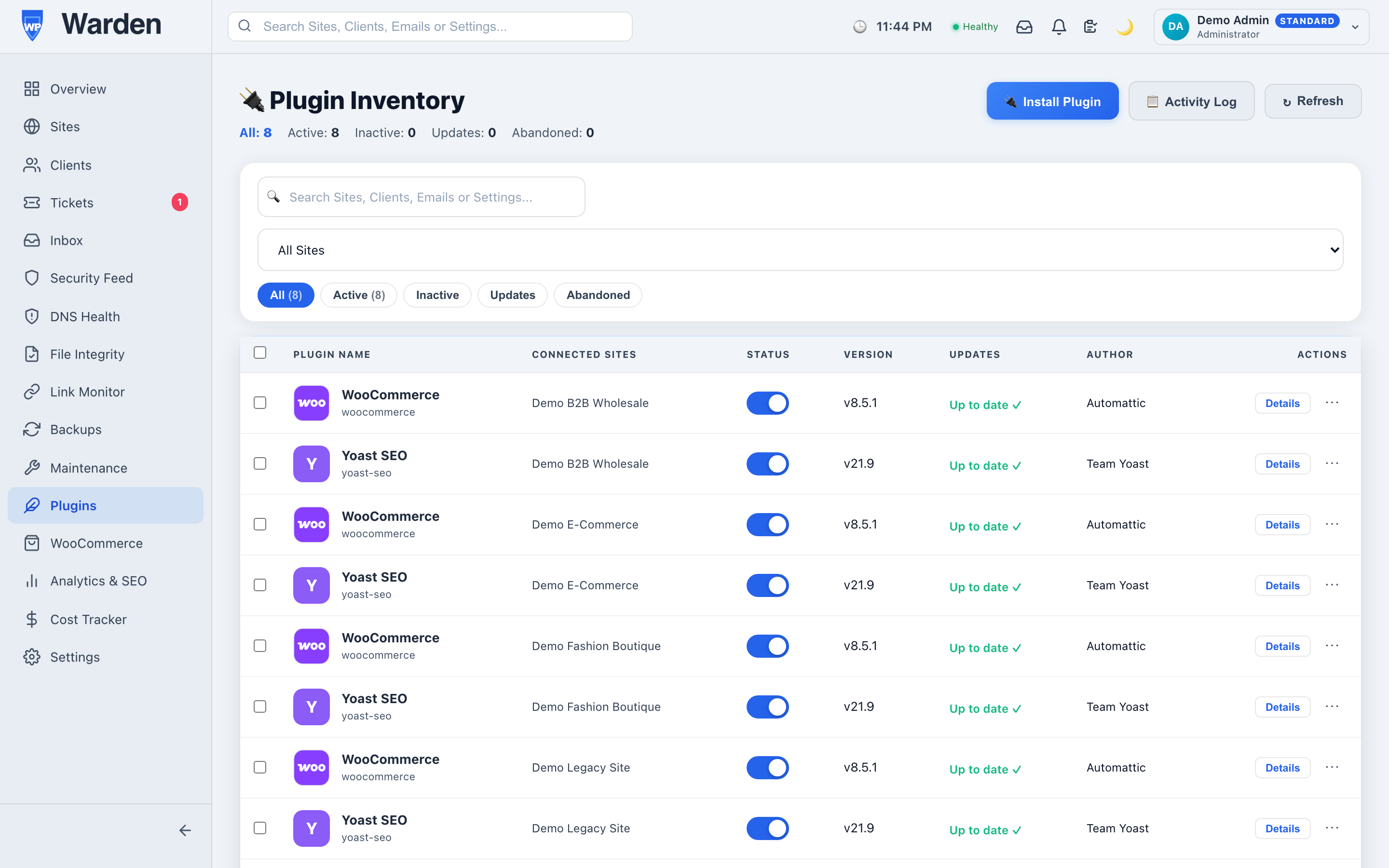
The WP Warden Watchdog plugin, installed once per managed site, sends regular heartbeats, executes commands sent from the dashboard — updates, plugin toggles, quarantining a suspicious file — and reports results back. Every other feature in the platform, from uptime checks to remote plugin installs, ultimately routes through this same narrow channel to actually touch the site.
Every command is authenticated through a site-specific API key and an optional HMAC signature, rather than a single shared secret covering the whole fleet. That distinction matters more than it might seem: if a single site’s key were ever somehow exposed, the damage is contained to that one site. A shared credential across every site in the fleet would turn a single leak into a fleet-wide problem, which is exactly the failure mode this design is built to avoid from the start.
It’s worth being clear about the plugin’s boundaries, because they’re intentional rather than a limitation. It doesn’t run malware scans locally, doesn’t generate reports, doesn’t make its own decisions about what to fix — all of that intelligence lives centrally in the WP Warden backend. The plugin’s entire job is faithfully executing commands it’s given and faithfully reporting what happened, nothing more. That narrowness is exactly what keeps it lightweight enough to run on every site in a fleet without anyone noticing it’s there.
Installation is the same as any standard WordPress plugin — upload it, activate it, and paste in the site-specific key generated when the site was added to WP Warden. There’s no server-level configuration and nothing beyond what a normal WordPress admin already knows how to do, which is deliberate: the barrier to connecting a new site should be minutes, not a technical project of its own.
No — each site has its own separate API key, so a single compromised site never exposes any other site in the fleet.
No — it stays deliberately lightweight, with the heavy work handled by the WP Warden backend instead of the site itself.
Start a free 14-day trial — no credit card required.
A lot of software claims to support Arabic and delivers exactly one thing: the English words translated, sitting inside a layout that still reads left to right. It looks wrong the moment an Arabic-speaking client opens it, because Arabic isn’t just different vocabulary in the same shape — the whole reading direction, and everything built around it, has to flip.
Swapping English words for Arabic ones is the easy half of localization. The hard half is everything that comes with reading right to left — where the navigation sits, which direction a progress indicator moves, how a data table’s columns are ordered. Get only the words right and the result feels subtly broken to a native reader in a way that’s hard to articulate but immediately obvious the moment they see it.
WP Warden’s dashboard and client portal are fully translated into four languages — English, Arabic, French, and German — with instant switching between them and no page reload. Choosing Arabic doesn’t just translate the words; it triggers a real right-to-left layout across the entire interface, part of the platform’s broader localization system, so the whole experience reads correctly rather than looking like an English interface wearing Arabic text.
A client who’s more comfortable in their own language doesn’t just tolerate a portal built for them — they actually use it. Reports get opened rather than filed away unread, a support ticket gets described clearly instead of translated awkwardly through a client’s second language, and the whole relationship feels less like an English-only tool the client is forced to work around. None of that is a nice-to-have if a meaningful portion of your client base is more comfortable in Arabic, French, or German than English.
The easiest way to tell fake RTL support from real RTL support is to look at the small things: does a progress bar fill from the correct side, does a data table’s columns actually reorder, does a chevron icon indicating “next” point the correct direction for the reading flow. Any single one of these being wrong is a small bug. All of them being wrong at once is usually a sign the “support” is translated text sitting on an unchanged layout — which is precisely the gap a genuine RTL implementation has to close everywhere, not just in the parts that are easy to notice.
No — it actually applies a right-to-left layout across the interface, a genuine structural change, not cosmetic text substitution over an unchanged layout.
English, Arabic, French, and German, across both the agency dashboard and the client portal.
Start a free 14-day trial — no credit card required.
Any platform serving more than one agency from the same underlying system eventually has to answer an uncomfortable question honestly: what actually stops one account from seeing another’s data? “The interface just doesn’t show it to you” is not a real answer — it’s a UI convenience, not a security boundary, and UI conveniences can be worked around in ways a genuine architectural boundary can’t.
Plenty of multi-tenant software gets this wrong in a specific, subtle way: the application layer filters what you see, but the database itself has no concept of tenant boundaries at all. That’s a single application bug away from one agency’s client list showing up in another agency’s dashboard — not a hypothetical, but a real and recurring category of bug across the software industry generally. The fix isn’t a smarter interface; it’s making the isolation something the database enforces on every single query, not something the application merely promises to respect.
WP Warden’s multi-tenant architecture isolates every agency account as its own separate tenant — its sites, clients, and settings are never visible to, or reachable from, any other agency account on the platform. Every database query on every protected route is filtered by tenant ID, so the isolation exists at the infrastructure layer itself, not as a display-layer convenience that a bug elsewhere could accidentally bypass.
If you manage client data with real names, real contact details, and real site credentials attached, the platform underneath you is only as trustworthy as its weakest architectural assumption. Every other feature in WP Warden — clients, sites, reports, portals — is built on top of this specific guarantee actually holding. It’s worth understanding not because you’ll ever interact with it directly, but because everything else you do rely on depends on it being true.
Most vendors will say “yes, your data is isolated” if asked directly, because it’s rarely a lie exactly — it’s just often true only at the interface layer, not the database layer underneath. A more useful question is more specific: is tenant isolation enforced in the database query itself, or only in what the application chooses to display. The first answer describes a real architectural guarantee. The second describes a convention that depends on every single line of application code getting it right, forever, with no second layer of defense if one line doesn’t.
No — every database query on every protected route filters by tenant ID at the query level itself, not just what the interface happens to display.
No — the same guarantee applies per tenant regardless of how many other agency accounts exist on the platform at the same time.
Start a free 14-day trial — no credit card required.
Almost every small agency starts the same way: one admin login, shared across the team, because setting up individual accounts felt like overkill when it was just two or three people. It stays that way long past the point where it should have changed, mostly because nothing forces the issue — until someone leaves the company and you realize the password everyone still uses is theirs to remember too.
The cost isn’t hypothetical, and it isn’t just security. When something changes unexpectedly across a client fleet, the first question is always “who did this” — and with a shared login, the honest answer is “one of four people, we’re not sure which.” That’s not a minor inconvenience; it’s the difference between a five-minute investigation and an afternoon of asking around hoping someone remembers.
WP Warden’s team management lets you invite additional team members to your agency account, each with their own login and a role that controls exactly what they can see and do — from full administrator access down to a limited role that can view sites but not touch sensitive settings. Every action a team member takes is logged against their own specific account in the activity and audit log, so “who did this” always has a real answer.
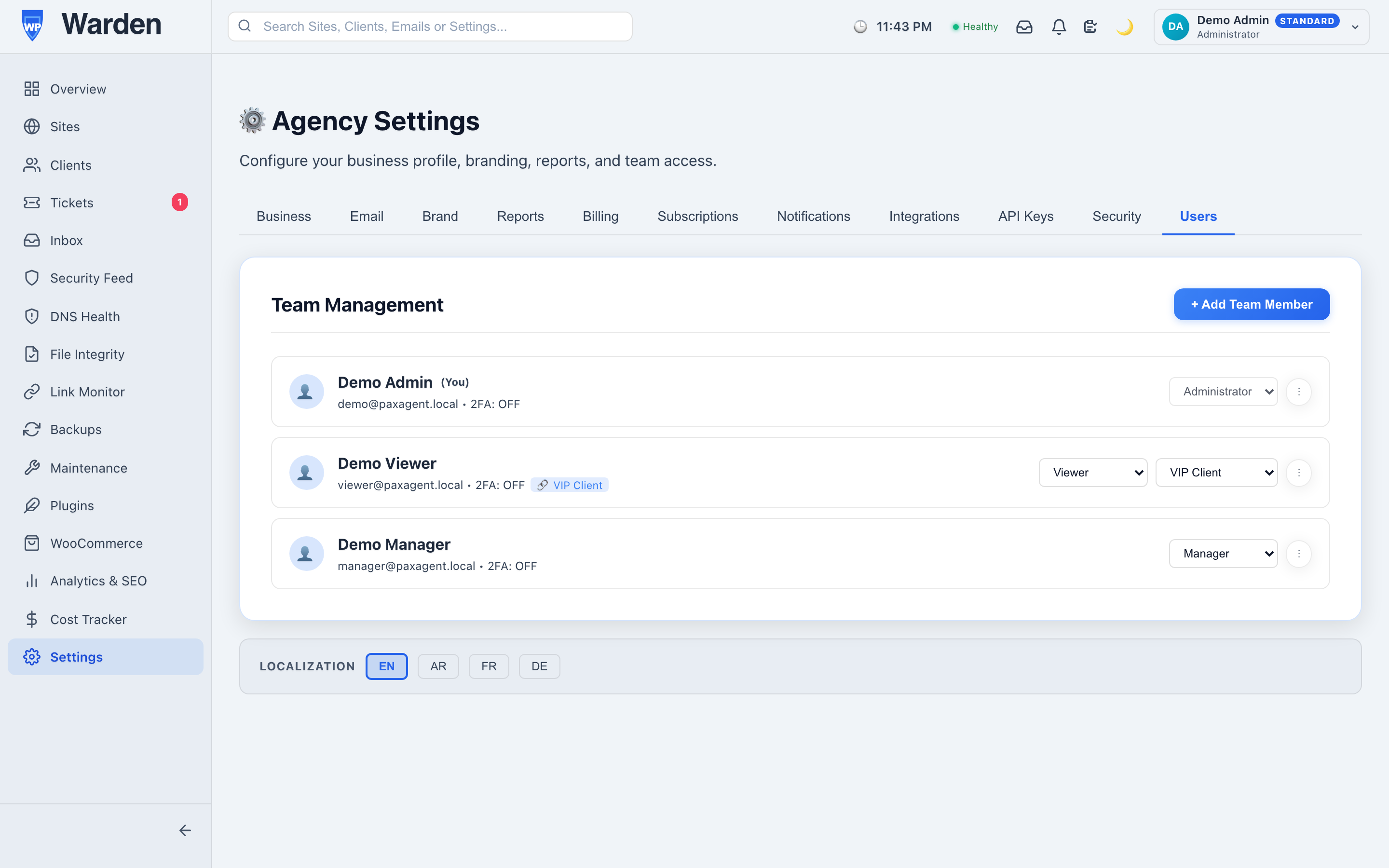
A new hire can get a genuinely limited account on day one — access enough to be useful, not enough to break something they don’t yet understand — and that access can expand naturally as trust builds, without ever rebuilding their account from scratch. The reverse matters just as much: when someone leaves, removing their access is a single action that doesn’t require changing a password everyone else also depends on, and doesn’t leave you wondering who else still technically has the old credentials written down somewhere.
The hardest part of role-based access isn’t the technical setup — it’s the judgment call of what a specific person should actually be able to touch. A useful default: a new team member gets read access and the ability to perform routine, reversible tasks (checking site health, replying to tickets) from day one, with the ability to make destructive or account-level changes added deliberately, once they’ve demonstrated they understand the fleet they’re working on. This isn’t about distrust — it’s about designing the system so that a genuine mistake, which happens to everyone eventually, has a limited blast radius rather than an unlimited one.
Yes — roles provide granular control over which actions and data each team member can access, not just a simple admin-versus-everyone-else split.
Yes — every action is logged against the specific user account that performed it, feeding a complete audit trail rather than one anonymous shared history.
Start a free 14-day trial — no credit card required.
Search for “WordPress agency management platform” and you’ll find a dozen tools that each claim to solve one piece of the puzzle — one for uptime, another for backups, a third for security scanning, a spreadsheet you built yourself for client billing. If you’ve ever tried to stitch those together into something that actually feels like a system rather than a pile of subscriptions, you already understand the problem WP Warden exists to solve.
The distinction matters more than it sounds. Most WordPress tools are plugins you install and then manage individually, per site, inside wp-admin. WP Warden flips that: a single lightweight companion plugin — the WP Warden Watchdog — gets installed once on each site you want to manage, and from that point on, everything else happens from WP Warden’s own external dashboard. Monitoring, backups, security scanning, updates, client reporting, support tickets — all of it reads from and writes to one unified system, instead of twenty separate wp-admin logins each with their own idea of what “healthy” means.
That plugin stays deliberately thin. It sends heartbeats, executes commands, and reports results — the actual processing, the actual intelligence, lives in WP Warden’s backend, not bolted onto every site it touches. That’s a meaningful design choice: a heavy all-in-one plugin adds real load to every single site it’s installed on, multiplied by however many sites you manage. A thin bridge plus a centralized brain doesn’t.
Three groups tend to get the most out of a platform shaped like this, and it’s worth being honest about which one you actually are before signing up for anything:
If you’re managing one personal site, most of this is overkill — you probably don’t need fleet-wide alerting or a white-label client portal for a blog only you read. The value shows up specifically at the point where “remembering everything by hand” stops being realistic.
Rather than a scattered feature list, everything in WP Warden groups under four real pillars:
It helps to make this concrete. An agency running twenty-two client sites the old way starts Monday with a mental checklist: which sites need updates, which had a weekend hiccup, which client emailed over the weekend about something being “off.” Answering any of that means opening several tools and cross-referencing them by hand, and by the time you’ve done that for twenty-two sites, half the morning is gone before any actual work has started.
The same Monday, from one dashboard: a single alert list already shows the two sites that had a brief outage overnight (both auto-resolved once they came back), the one plugin update pending across four sites, and a client’s support ticket submitted Sunday evening. Nothing about the underlying work changed — updates still need running, that ticket still needs a reply — but the ten minutes it now takes to know exactly what needs attention used to take closer to an hour of manual checking.
Site management gives you one fleet-wide list instead of a login per site, and multi-tenancy keeps every client’s data strictly isolated at the database level — not just hidden by the interface — regardless of how many other agencies happen to share the same underlying platform. What’s worth noticing is that the tools themselves don’t really change between five sites and five hundred. What changes is which problems become invisible without them: at five sites, a missed alert is recoverable because you’ll probably notice anyway. At five hundred, the same miss rate means something is quietly broken somewhere at any given moment, and the fleet-wide view is the only thing standing between that and a client finding out before you do.
The actual onboarding is short by design:
If you’re new to WordPress plugin management generally, the official WordPress.org plugin management documentation is a good baseline reference before adding your first site.
Yes, one lightweight plugin per site — that’s the only thing that ever touches the site directly. Everything else runs from the WP Warden dashboard itself.
Only what you choose to show them, through their own white-label portal — never your internal dashboard, and never another client’s data.
No — a solo freelancer managing five sites gets the exact same tools as a twenty-person agency managing five hundred. The platform scales; the workflow itself doesn’t change.
Start a free 14-day trial — no credit card required.
Two agencies, same platform, completely different mornings. One agency lives and dies by security — the first thing anyone wants to see is the malware scan summary. The other is entirely client-services driven — the first thing anyone wants is the ticket queue and who’s waiting on a reply. A dashboard built for only one of those workflows is, by definition, wrong for the other.
Every fixed dashboard layout is, implicitly, a bet on what its typical user cares about most. That bet is right for some agencies and wrong for others, and being wrong means the thing you actually need to see first is buried a scroll or two down, every single morning, forever. A dashboard that assumes there’s one correct priority order for every agency is solving the wrong problem.
WP Warden’s dashboard ships in two forms. The classic dashboard is built from sixteen selectable widget types — alert summaries, fleet health, recent activity, and more — that you choose and arrange to match your own workflow. If you’d rather have everything on a single screen instead of a grid, the Command Center view presents the same underlying data across fourteen interactive zones, with a simple toggle between the two saved locally per user.
Neither view exists as a decorative summary detached from everything else — both are built directly on top of the same data every other part of the platform uses. From either layout, one click reaches a specific site’s full detail, an active alert, or a client record. The widgets summarize; the depth is always one click away, not walled off behind a separate part of the platform.
A dashboard layout that’s wrong for your workflow doesn’t usually announce itself as a problem — it just quietly makes every morning slightly less efficient than it should be, in a way that’s easy to normalize. A few signs worth paying attention to:
None of these are dramatic on their own. Together, they’re a reliable sign that the default arrangement has stopped matching how the team actually works, and it’s worth a few minutes to rearrange rather than continuing to work around it indefinitely.
There’s no wrong starting point — the classic widget grid is the more familiar option if you’ve used dashboard-style tools before, and it’s easy to reorder as priorities shift. The Command Center view suits people who prefer everything visible without scrolling, at the cost of a slightly denser first impression. A reasonable approach is trying the default classic view for the first week, noticing which widgets you find yourself ignoring, and rearranging from there — the goal is a dashboard that reflects how your specific agency actually triages a morning, not a generic best practice.
Yes, a single toggle switches instantly, with your choice remembered the next time you log in.
No — both dashboard versions reuse the same single widget-data endpoint, so there’s no extra performance cost to running either one.
Start a free 14-day trial — no credit card required.
If you manage more than a couple of WordPress sites, you already know the real cost isn’t any single task — it’s the context switching. Log into site one, check updates, log out. Log into site two, different admin password, check again. By site ten you’ve forgotten what you already fixed on site three. Learning how to manage multiple WordPress sites from one dashboard, instead of one login at a time, changes the math entirely.
Any single WordPress maintenance task is easy on its own. The problem is doing all of them, consistently, across every site you’re responsible for, without missing one because you got interrupted halfway through your login rotation. A missed update on one site out of twenty is exactly how a known vulnerability sits open for months without anyone noticing. The whole point of learning to manage multiple WordPress sites properly is removing that gap between “I should check this” and “I actually checked this,” across every site, every time.
You don’t need to move everything into a fleet dashboard on day one. Start with the three things that matter most and compound fastest if neglected:
Updating fifty plugins across twenty sites in one action is the whole point of a fleet dashboard, but only if it’s paired with a way to know when something broke. Bulk updates that queue and run sequentially, combined with an automatic before/after visual check, let you move fast without finding out about a broken checkout page from the client instead of from your own dashboard.
It’s worth resisting the urge to update everything everywhere at once purely because you can. Staggering major core updates, or holding off a day on a plugin that just released a major version bump, gives you a chance to notice a problem on a handful of sites before it’s live on all of them.
As the fleet grows, so does the team managing it. Role-based access — Admin, Manager, Viewer — means a new hire can be productive on day one without also getting keys to billing or account settings. And if your agency or clients work across languages, a dashboard that only speaks one isn’t really centralized for everyone using it.
The tools you need to manage multiple WordPress sites don’t change much between 5 and 50 sites — what changes is which failures become visible. At 5 sites, a missed backup or a stalled update is annoying but recoverable with direct attention. At 50, the same miss rate means something is quietly broken on 2-3 sites at any given time, and without centralized alerting, you simply won’t find out until a client does.
This is also where reporting stops being optional. At 5 sites you can plausibly remember the state of each one. At 50, a dashboard that surfaces exactly which sites need attention today, rather than requiring you to check all 50 individually, is the difference between the system actually scaling and someone quietly working unpaid overtime to keep it together.
It’s easier to see the value in concrete terms. Picture an agency running 18 client sites the old way: eighteen separate wp-admin logins, a shared spreadsheet tracking which site was last backed up, and a recurring calendar reminder to “check plugin updates” that gets snoozed more often than it gets actioned. A single missed update on one site sits unnoticed for six weeks until a client calls about a strange redirect.
Now picture the same eighteen sites in one dashboard: a single view shows exactly which sites have pending updates, which passed their last security scan, and which backup ran successfully last night. The redirect issue gets caught by an automated file integrity check the same day it appears, not six weeks later from an anxious client email. Nothing about the underlying maintenance work changed — updates still need to be applied, backups still need to run — but the visibility into whether it’s actually happening changed completely.
Any one of these on its own is a minor inconvenience. Two or more happening regularly is a reliable sign the current setup has stopped scaling with the business, regardless of how good the underlying maintenance work still is.
Moving an existing fleet of sites into a fleet dashboard doesn’t require any downtime or client-facing disruption. Since the connection happens through a lightweight plugin installed on each site, sites can be migrated over one at a time, at whatever pace makes sense, without any interruption to the site itself. A reasonable approach is starting with your highest-priority or highest-traffic clients first, both because they benefit the most from tighter monitoring, and because it lets you validate the new setup on the sites you care most about before rolling it out everywhere.
The actual setup to manage multiple WordPress sites from one place is short:
From there, every site shows up in the same dashboard, with the same monitoring, the same backup policy, and the same reporting. See our full getting started guide for the details. For reference on WordPress’s own official plugin installation process, the WordPress.org plugin management documentation covers the basics if you’re new to the platform generally.
With centralized tooling, well into the hundreds for routine maintenance tasks — the ceiling becomes client communication and custom work, not the maintenance itself. Without centralized tooling, most people hit a wall somewhere between 10 and 15 sites before quality starts slipping.
No — a platform built to manage multiple WordPress sites should work identically regardless of hosting provider, since the actual connection happens through a plugin installed on the site itself, not through host-specific integrations.
Run an initial security scan and confirm the first backup completes successfully before doing anything else. Starting from a known-clean, known-backed-up baseline makes every future finding meaningful, instead of wondering whether an issue predates you taking over the site.
Start a free 14-day trial — no credit card required.