
Skip to content
Contact us
Contact us
Copyroom logo: a blue document icon next to the word Copyroom
Copyroom documentation

SET UP COPYROOM,
STEP BY STEP.

Everything about installing Copyroom, choosing who writes, signing in safely, saving work, and how licence keys work.

  • Free plugin, Pro from $59 a year
  • Your content stays on your site
01 / Install

INSTALL AND
SET UP.

Copyroom is a normal WordPress plugin. It needs WordPress 6.4 or newer and PHP 7.4 or newer.

01

Install the free plugin

In WordPress go to Plugins, Add New, search for Copyroom, install and activate it. (Until launch, join early access and we will send you the file.)

02

Open Settings, Copyroom

Choose the user role that should write in Copyroom, and the idle time-out in minutes. Administrators can always use Copyroom.

03

Try it

Sign in as a user with that role and add a post. WordPress opens Copyroom instead of the standard editor. Administrators get an Edit in Copyroom link on each post.

04

Add Pro if you need it

Buy a licence on the Copyroom page, upload the Copyroom Pro plugin from your purchase email, and paste your licence key under Settings, Copyroom Pro. Pro needs the free plugin to be active. Step by step: Buy and install Pro, below.

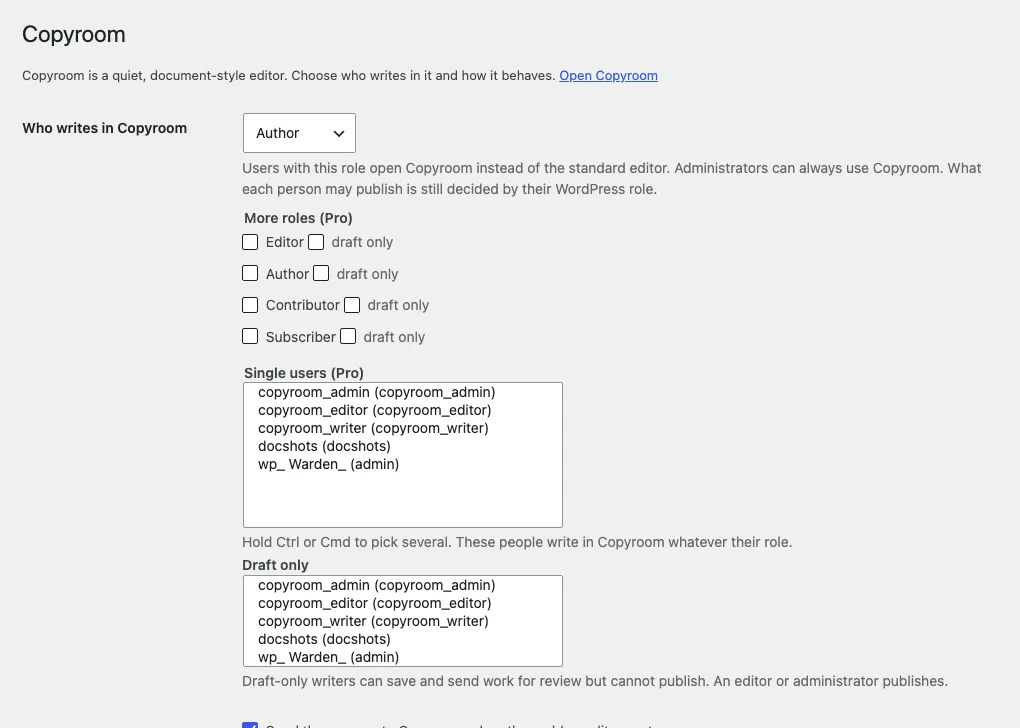
The Copyroom settings page in WordPress with the role that writes, the redirect options and the idle time-out (demo site)

Settings, Copyroom in WordPress: choose the assigned role, redirect and idle time-out.

02 / Free and Pro

WHAT IS IN
EACH PLUGIN.

Copyroom is two plugins. The editor is the same in both; Pro adds the tools a team needs around it.

Free

The editor for posts, pages and custom post types. Preview, drafts and publishing. The content table with search, sort, status and category changes. One assigned role. Idle time-out. Text mode for pages made with a visual design tool. Settings in Copyroom and in WordPress.

Pro

Everything in Free, plus scheduling, autosave, revisions, roles, single users or a mix, draft-only writers, a branded sign-in page on a path you choose, Copyroom two-step verification, interactive tables, SEO fields and AI writing help with your own key. Design tools: a second toolbar row, fonts, Copy style, charts, equations, symbols, a vertical ruler, table styles and image position for covers. Email support and updates.

03 / Writers

CHOOSE WHO
WRITES.

Free uses one role. Pro lets you mix roles and single people.

In Settings, Copyroom (or the Settings page in the Copyroom home)

  1. RoleEveryone with this role opens Copyroom when they add or edit a post. Their WordPress role still decides what they may publish.
  2. More roles and single users (Pro)Tick extra roles, and pick single people whatever their role.
  3. Draft only (Pro)Mark a role or a person as draft only. They can save and send work for review but cannot publish. An editor or administrator publishes.
  4. RedirectSend these people to Copyroom whenever they open the standard add or edit screen. Administrators are not redirected unless you choose it.
  5. Content typesPosts and pages are always allowed. Tick extra types, or none to allow every type that uses the editor.
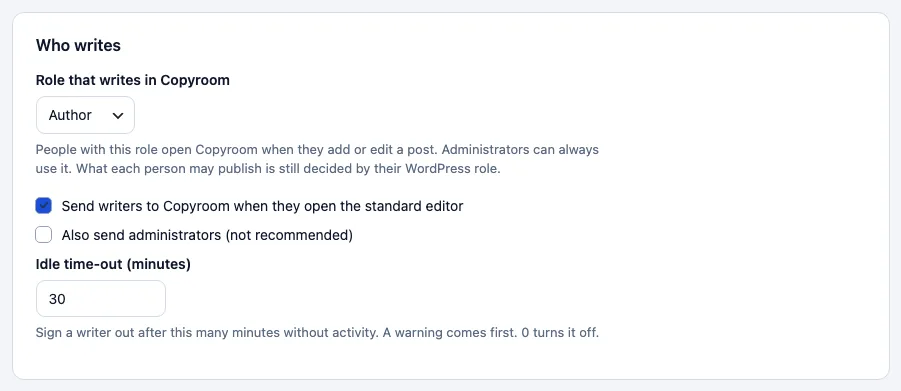
The Who writes card in Copyroom settings: the role that writes, the redirect option and the idle time-out (demo site)

Free: one role, the redirect and the time-out.

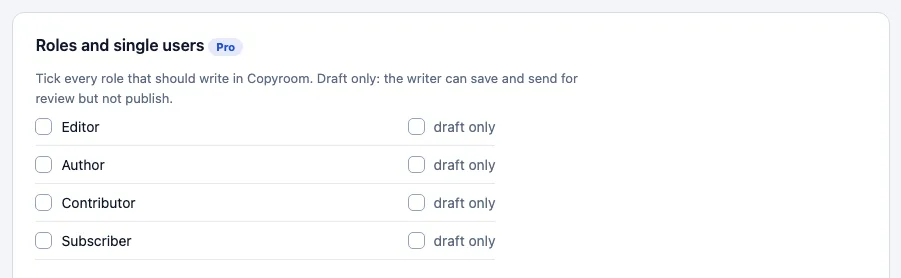
The Roles and single users card in Copyroom Pro settings with a tick box and a draft only box for each role (demo site)

Pro: several roles, each with a draft only option.

Every writer still needs a normal WordPress user, so authorship and permissions stay correct.

04 / Sign-in page (Pro)

A SIGN-IN PAGE
OF YOUR OWN.

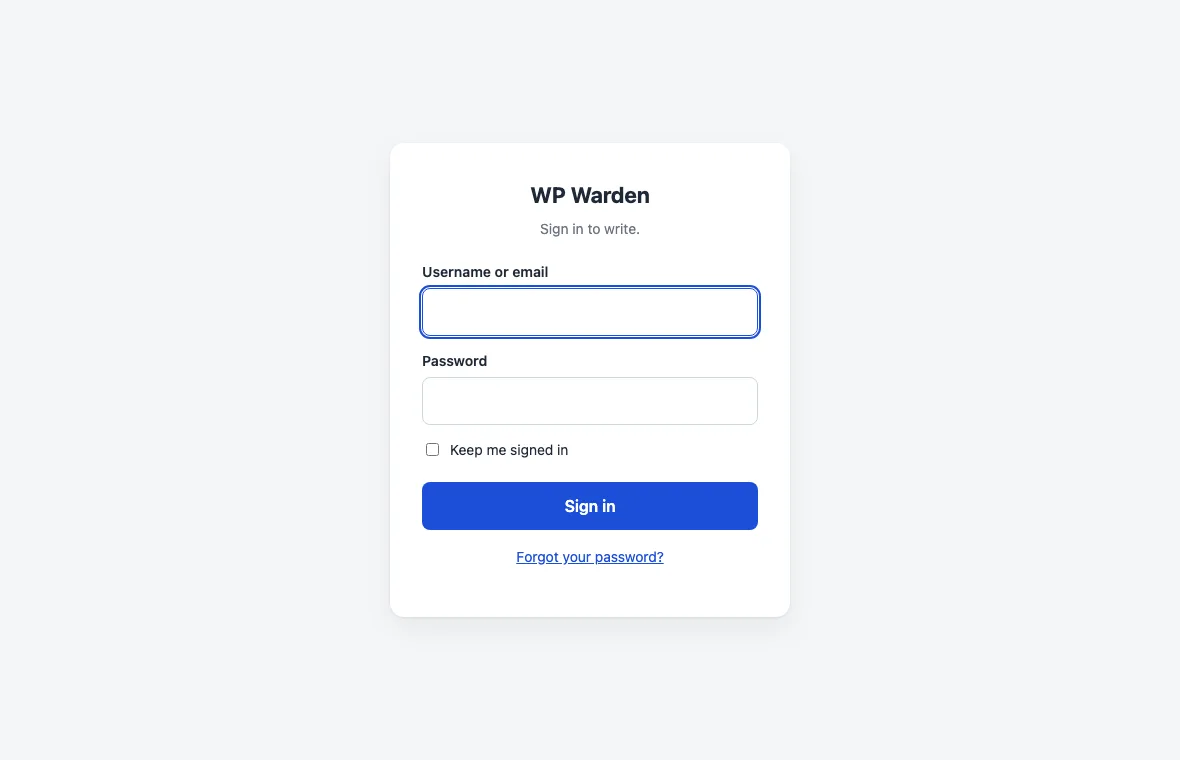
Writers can sign in on your own branded page instead of the WordPress login screen.

How it works

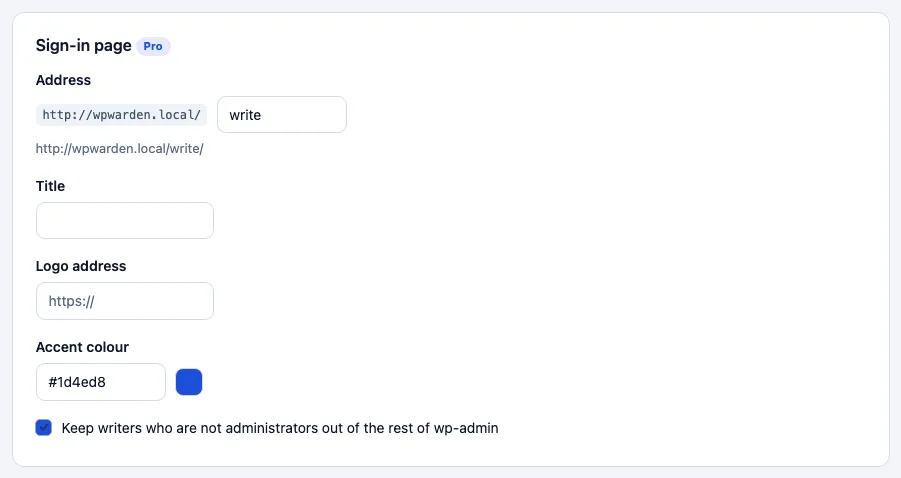
  1. AddressBy default /write/ on your site. Change it in Settings, Copyroom Pro (or the Copyroom home) to any path you like, for example /desk/. The old path stops working straight away. Paths WordPress uses itself, such as wp-admin, are refused.
  2. LookYour title, logo address and an accent colour.
  3. Safe by designWrong passwords are limited to 10 tries per 15 minutes from one address. Sign-in uses WordPress itself, so password rules and lock-out plugins keep working.
  4. Your two-step pluginIf another plugin on your site asks for a second step at sign-in, Copyroom does not work around it. The page points the writer to the standard WordPress sign-in, and they land in Copyroom afterwards.
  5. Stay out of wp-adminOptionally keep writers who are not administrators out of the rest of wp-admin.
The Copyroom sign-in page at /write/ with fields for username or email and password and a Sign in button (demo site)

What a writer sees at /write/.

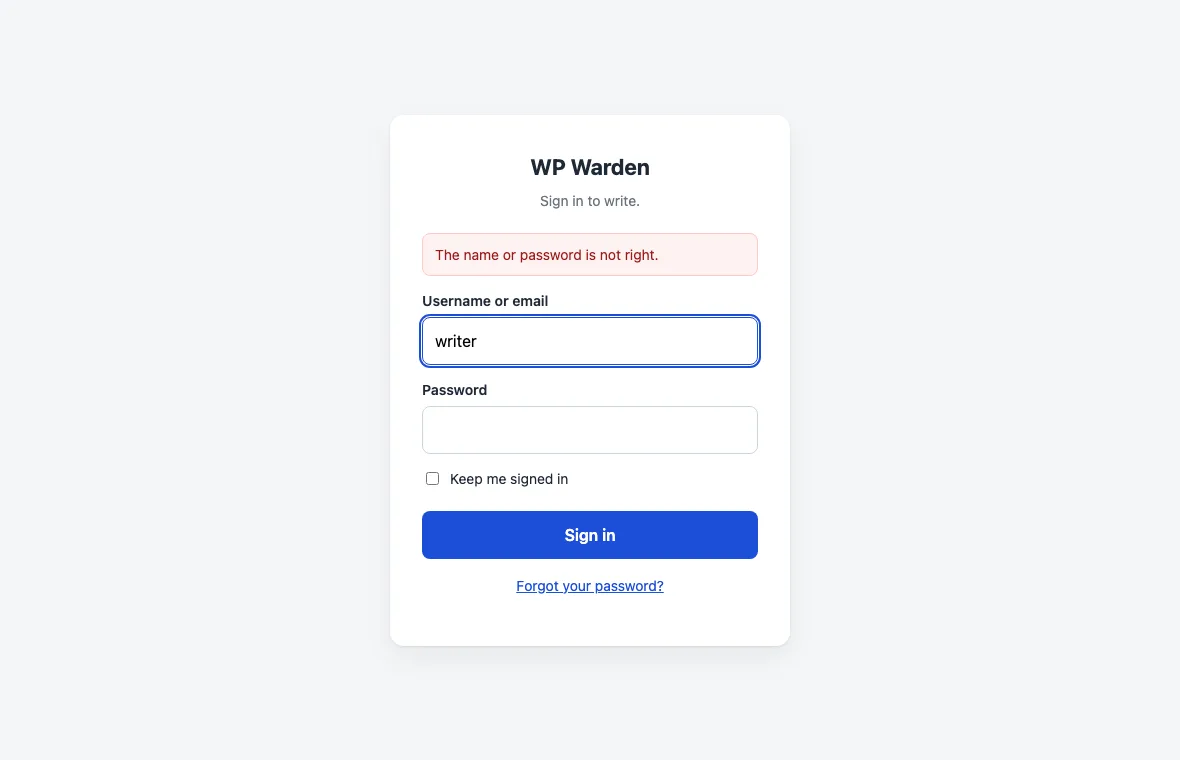
The Copyroom sign-in page showing the message The name or password is not right after a wrong password (demo site)

A wrong password gets a plain message.

The Sign-in page card in Copyroom Pro settings with the address, title, logo address, accent colour and the wp-admin option (demo site)

Choose the address, title, logo and accent colour.

05 / Two-step verification (Pro)

AN EXTRA CHECK FOR
COPYROOM ONLY.

Prove who wrote what, without changing how people sign in to WordPress.

What it is and what it is not

  1. A code check after sign-inWhen it applies, a writer enters a 6-digit code from an authenticator app before Copyroom opens.
  2. Never a replacementIt does not sign anyone in, does not skip your WordPress sign-in or any two-step plugin, and does not affect wp-admin.
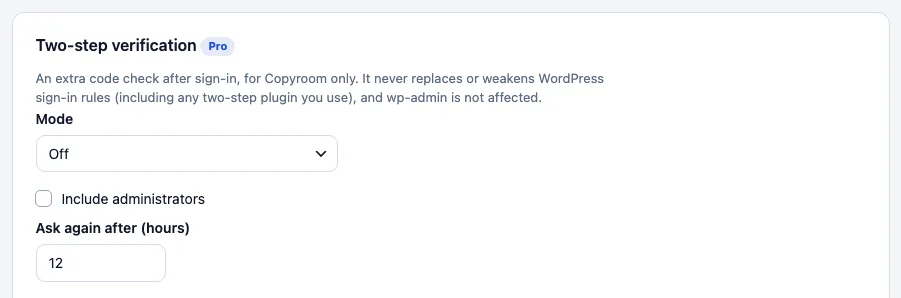
  3. Off, optional or requiredSet the mode in Settings. Optional means each person chooses at Two-step verification in the Copyroom home. Required means everyone who uses Copyroom sets it up on their next visit. Administrators are included only if you tick Include administrators.
  4. Ask again afterPick how many hours a confirmation lasts. A new sign-in always asks again.
  5. Backup codesEight single-use codes are shown once at setup. A used code stops working.
  6. Lost phoneAn administrator opens Settings, Two-step verification and resets the person. They set it up again at their next visit.
  7. ProtectionFive wrong codes lock that account for ten minutes. A code can be used only once. The secret is stored encrypted and backup codes only as hashes.
The Two-step verification card in Copyroom Pro settings with the mode, the include administrators option and how many hours before it asks again (demo site)

Set the mode and how long a confirmation lasts.

06 / Time-out and autosave

A TIME-OUT SHOULD NEVER
COST SOMEONE THEIR WORK.

Set an idle time-out to sign writers out when they walk away.

Free

Writers see a note that unsaved work is lost when the time-out ends, and a warning one minute before sign-out. They should save often with Ctrl+S or Cmd+S.

Pro

Autosave is on by default. Drafts are saved every minute and once more just before an idle sign-out. A published post changes only when the writer clicks Update. You can turn autosave off in Settings.

Set the time-out to 0 to turn it off. Your browser also keeps a local copy of what a writer is typing.

The Autosave drafts option in Copyroom Pro settings, ticked, with a note that a published post changes only when the writer clicks Update (demo site)

Pro: autosave is on by default and can be turned off.

07 / The content table

FIND, SORT AND
CHANGE YOUR CONTENT.

The Copyroom home lists posts, pages and custom types. It has a dark and a light theme; the toggle is at the bottom of the sidebar.

What you can do

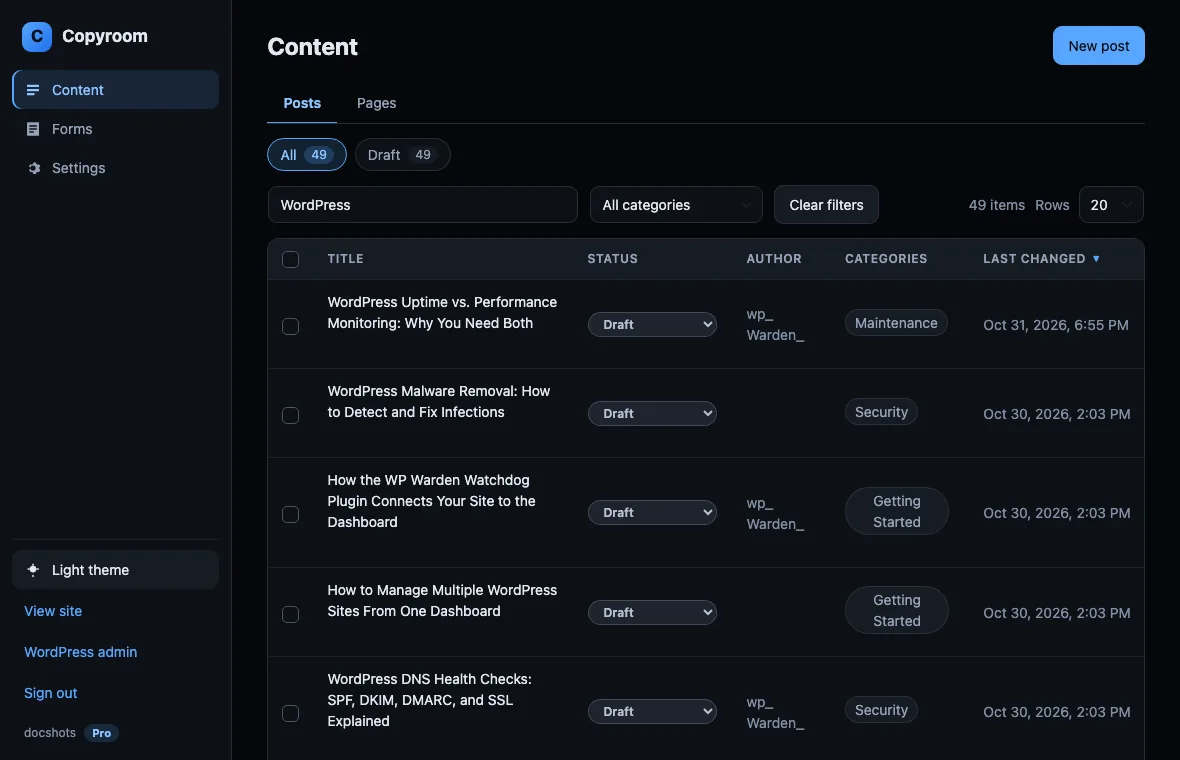
  1. Search and filterSearch by title, filter by status (published, draft, pending review, scheduled, private, trash) and by category.
  2. SortClick a column heading to sort by title, status, author or last change. Click again to reverse.
  3. Change statusUse the status control on a row, or tick several rows and use the bulk bar. Publishing needs the right to publish; trash asks you to confirm and can be restored.
  4. Move categoriesMove, add or remove a category on many posts at once.
  5. Only what you may doWriters see their own posts unless their WordPress role may edit others. Every change is checked by WordPress for each post.
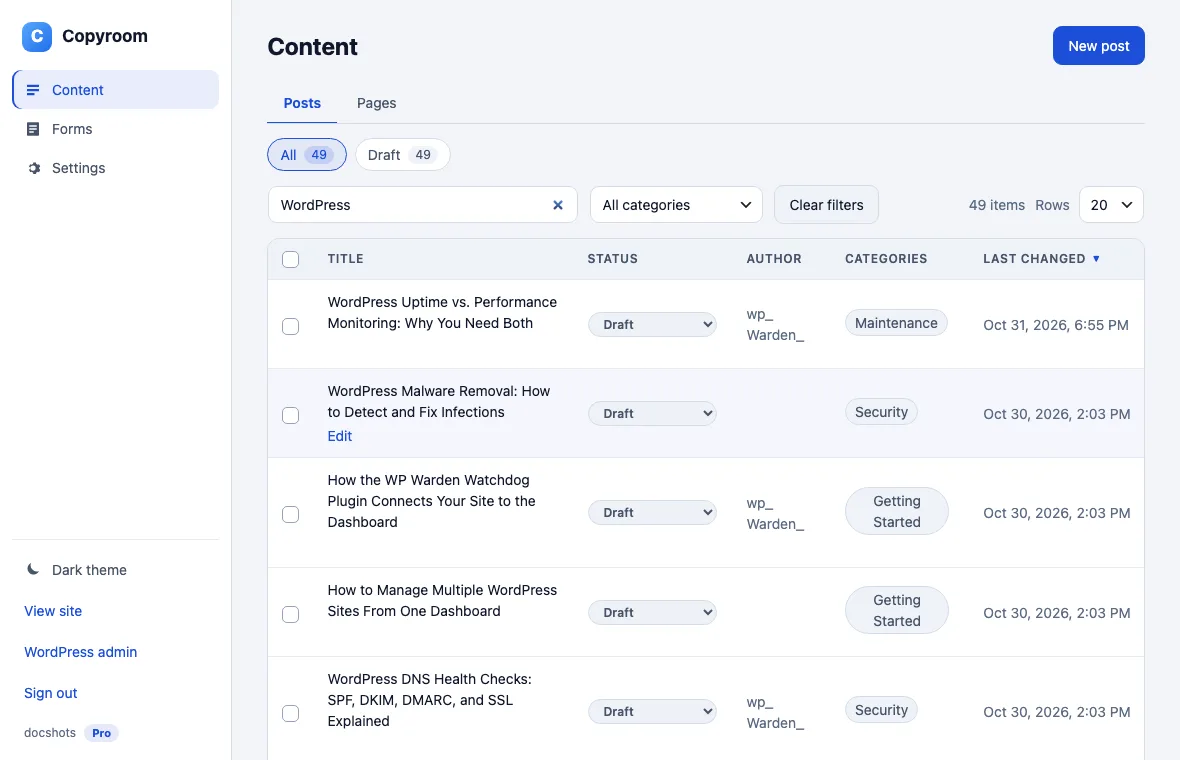
The Copyroom content table in the light theme: posts with title, status, author, categories and last changed, with a search box and filters (demo site)

The content table, light theme.

The Copyroom content table in the dark theme (demo site)

The same table in the dark theme.

08b / The editor

A QUIET PAGE
TO WRITE ON.

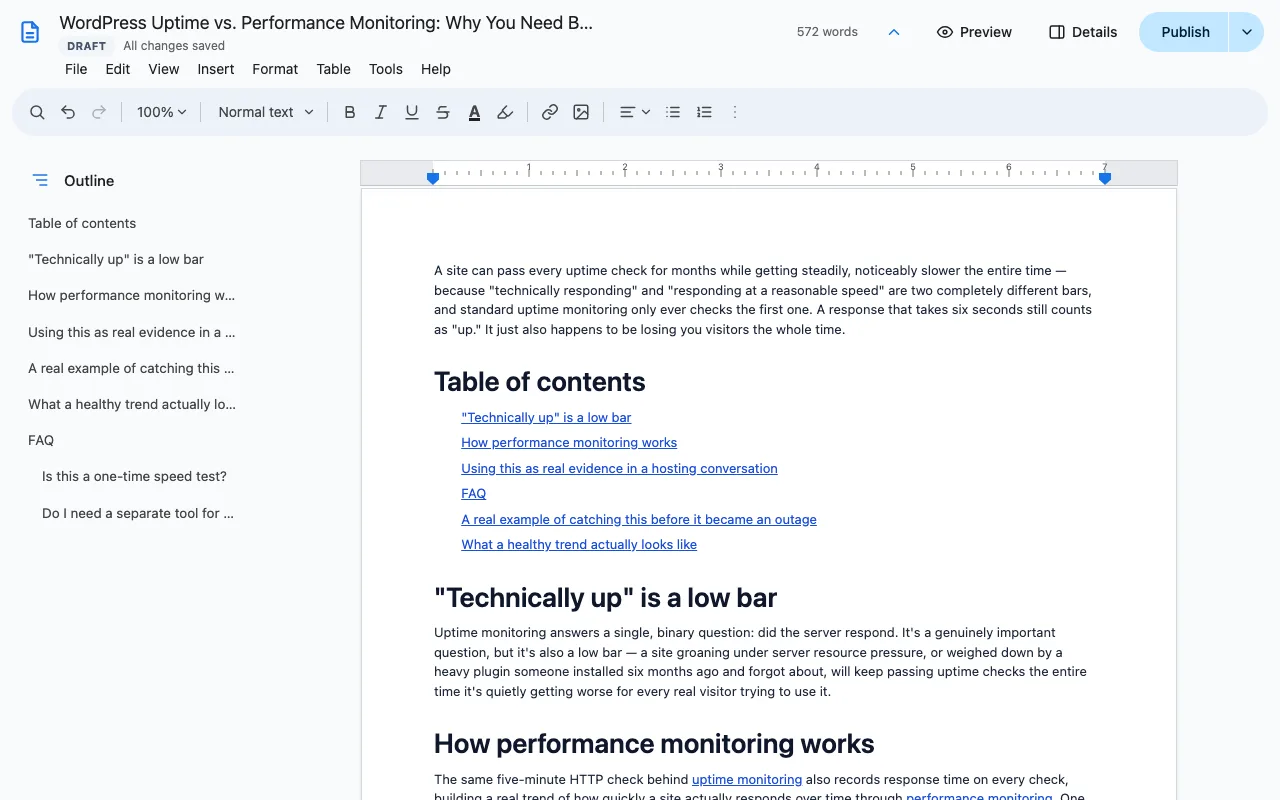
Open a post from the content table and write. Menus, one toolbar and an outline sit around the page.

The Copyroom editor with a menu bar, a toolbar, an outline of headings on the left and the draft on a page with a ruler (demo site)

The editor: menu bar, toolbar, outline and the page.

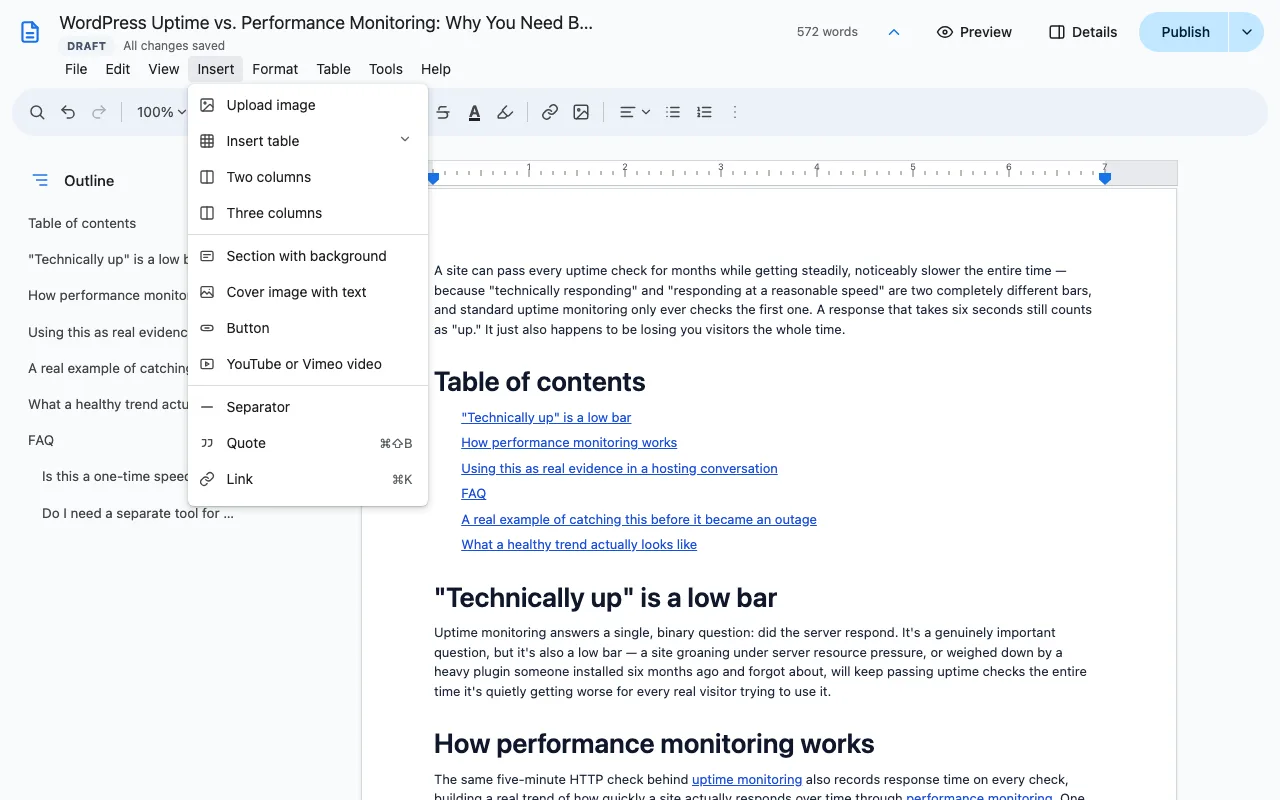
The Insert menu open in the Copyroom editor, listing image, table, link and other items (demo site)

The Insert menu adds images, tables, links and more.

Everything you can do with the page is in the menus: File, Edit, View, Insert, Format, Table, Tools and Help. Press Ctrl+S or Cmd+S to save at any time.

Tables

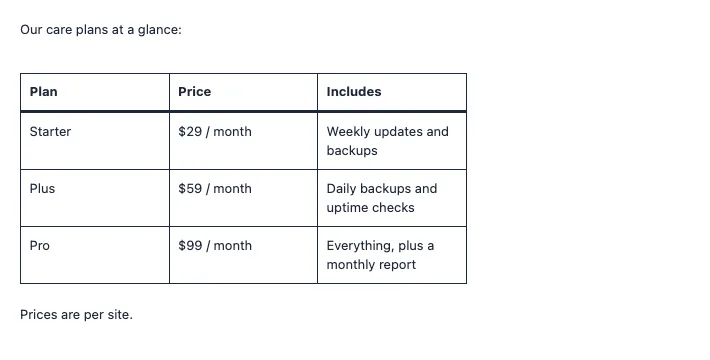
  1. Looks like the pageA table in the editor uses WordPress's own table style and your theme's table style, so it looks the same as on the site: the same lines, the same heavier line under the header row, and the same columns.
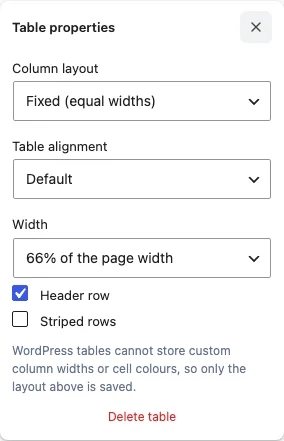
  2. WidthClick in the table, open Table properties and choose a width: the full page, 75, 66, 50, 33 or 25 percent. Combine it with Table alignment to place a narrow table left, centre or right. On phones a table always uses the full width.
  3. ColumnsFixed gives every column the same width. Automatic lets the content decide. WordPress does not store a width per column.
A table in the Copyroom editor set to two thirds of the page width, with a heavier line under the header row (demo site)

A table at 66% of the page width.

The Table properties window: column layout, table alignment, the Width list set to 66% of the page width, header row and striped rows (demo site)

Table properties: layout, alignment and width.

Sections and covers

  1. Section with a backgroundInsert, Section wraps the text you are in. Open Details to choose a background and a text colour. Headings and text inside the section use that text colour, and the alignment you choose for each line is kept.
  2. Cover image with textInsert, Cover puts text on top of a picture. Details sets the overlay colour and how dark it is, the height and whether the picture is light. The text is shown centred over the picture on the site as in the editor.
  3. Any themeSome themes leave out WordPress's own block styles. Copyroom adds the few rules sections and covers need, only on pages that use them, so they look the same as in the editor.
08c / Design tools (Pro)

MORE WAYS TO
SHAPE THE PAGE.

Copyroom Pro adds a second toolbar row and a few tools for richer pages. Everything is saved as normal WordPress content.

The Copyroom Pro editor with two toolbar rows: the second row has the font list, Copy style, code, subscript, superscript, quote, line, table, columns, section, cover, button, video, chart, equation and symbols (demo site)

Pro: the second toolbar row with the rest of the tools. Turn it off under View if you prefer one row.

The tools

  1. FontSelect text and pick a font. The list has fonts that are already installed on computers and phones, plus your theme's own fonts, so nothing extra is downloaded.
  2. Copy styleSelect text that looks the way you want, click Copy style, then select the text that should look the same. Bold, italic, colours, font and the alignment and heading level are copied. Press Esc to cancel.
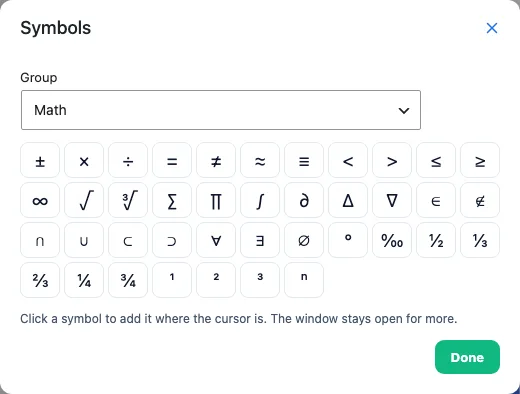
  3. SymbolsArrows, math, currency, Greek letters, punctuation and shapes. Click a symbol to add it where the cursor is; the window stays open for more.
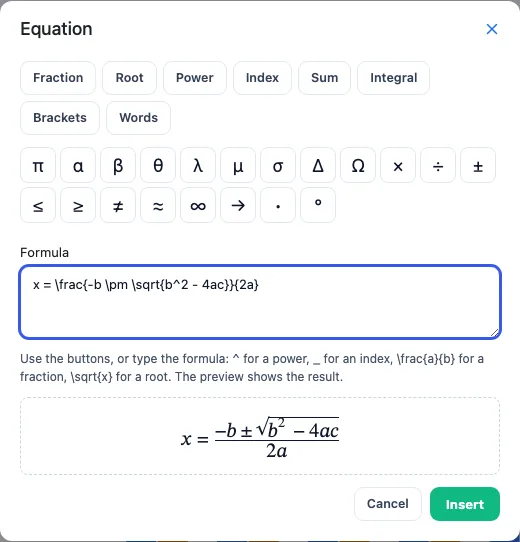
  4. EquationUse the buttons, or type a formula: ^ for a power, _ for an index, \frac{a}{b} for a fraction, \sqrt{x} for a root. The preview shows the result. Visitors see it drawn by their browser, with no script.
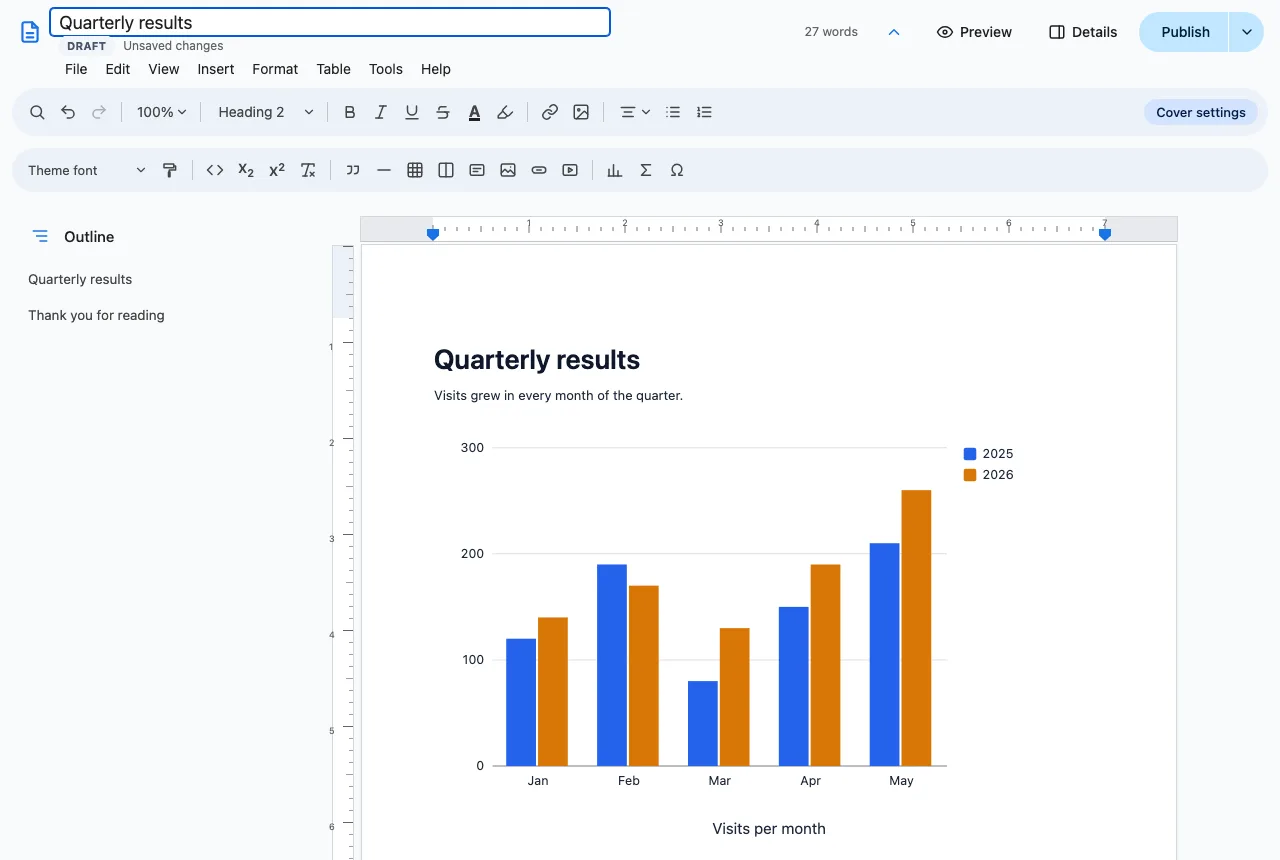
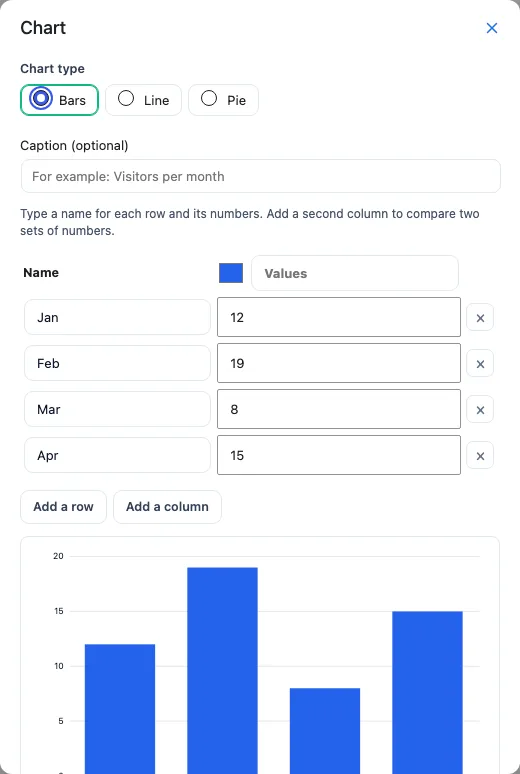
  5. ChartBars, line or pie from a small table of names and numbers, up to 12 rows and 4 columns of values. Visitors see a sharp image that fits every screen, and screen readers get the numbers as a table. Double-click a chart to change it.
  6. Vertical rulerBeside the page, in inches or centimetres (View menu). A coloured mark shows where the block you are in starts and how tall it is.
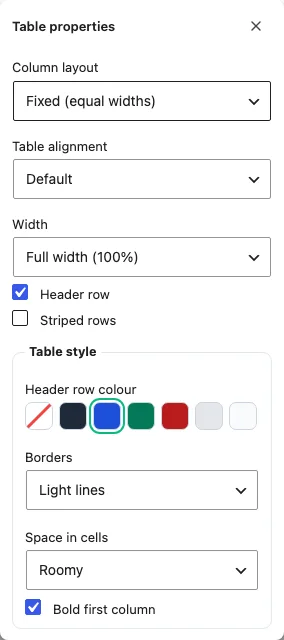
  7. Table styleIn Table properties: a colour for the header row, lighter, darker or thicker borders, more or less space in the cells, and a bold first column.
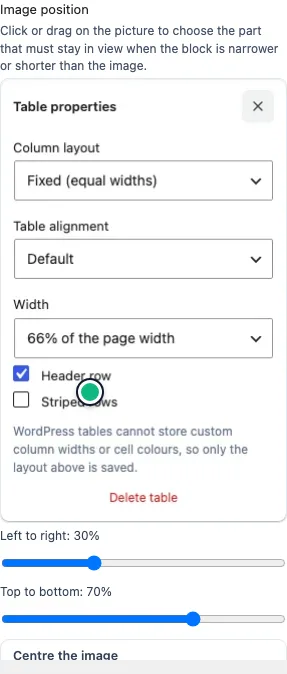
  8. Image positionFor a cover, drag the dot on the picture (or use the sliders) to choose which part stays in view when the block is narrower or shorter than the picture.
A post in the Copyroom Pro editor with a vertical ruler beside the page and a bar chart comparing two years of visits per month (demo site)

A chart in the page, with the vertical ruler on the left.

The Chart window: type Bars, Line or Pie, a caption, a small table of names and values, Add a row and Add a column, and a live preview (demo site)

The Chart window with a live preview.

The Equation window: buttons for fraction, root, power, index, sum, integral, brackets and words, math symbols, the formula box and a live preview of the quadratic formula (demo site)

The Equation window with a live preview.

Table properties with the Pro Table style: header row colour swatches with blue chosen, Borders set to Light lines, Space in cells set to Roomy and Bold first column ticked (demo site)

Table style in Table properties.

The Image position control of a cover block: a dot on the picture and two sliders, left to right 30% and top to bottom 70% (demo site)

Image position for a cover.

The Symbols window with the Math group open: plus or minus, times, divide, not equal, infinity, square root, sum and more (demo site)

Symbols, here the Math group.

Charts and equations are shown by the Copyroom Pro plugin. They stay on your pages if a licence ends; if you delete Copyroom Pro, those two blocks are no longer shown. The free plugin keeps them unchanged in the editor.

08 / Languages

FOUR LANGUAGES,
ONE CLICK EACH.

Copyroom speaks English, French, German and Arabic. Each person sees it in the language set in their own WordPress profile.

What is translated

  1. The writing screensThe content table, the editor, and every message in them. Arabic switches the whole screen to right-to-left.
  2. What visitors seeOn articles: the author signature, table controls, and theme buttons. The editor also arrives in the site language.
  3. Settings pagesThe two WordPress settings pages for Copyroom stay in English for now. The free plugin can be translated by the WordPress.org community.
  4. How to change itIn WordPress open Users > Profile, choose a language, and save.
09 / Preview and scheduling

SEE IT BEFORE
IT GOES LIVE.

Preview is free. Scheduling is part of Pro.

Steps

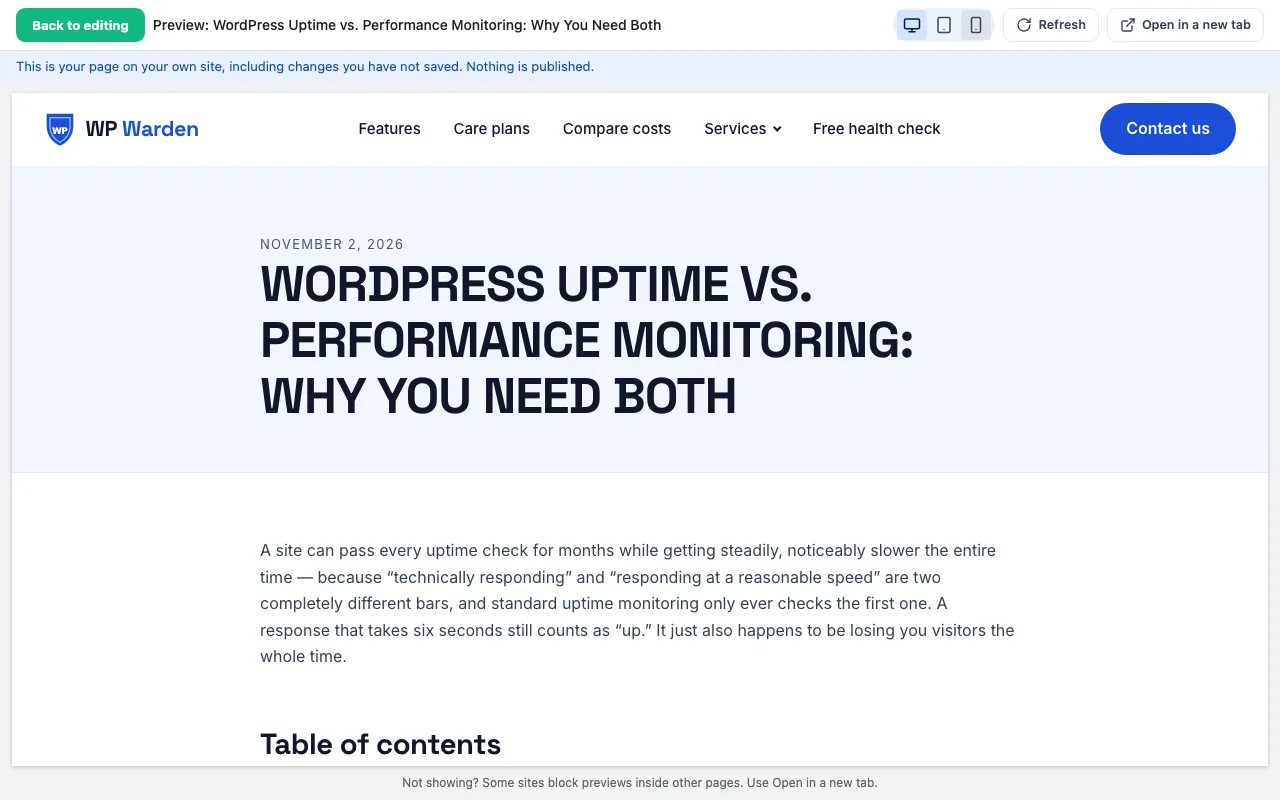
  1. PreviewClick Preview in the editor to see the draft on your site in your theme, including changes you have not saved. Use Open in a new tab for a private link. Nothing is published.
  2. SizesSwitch between computer, tablet and phone widths.
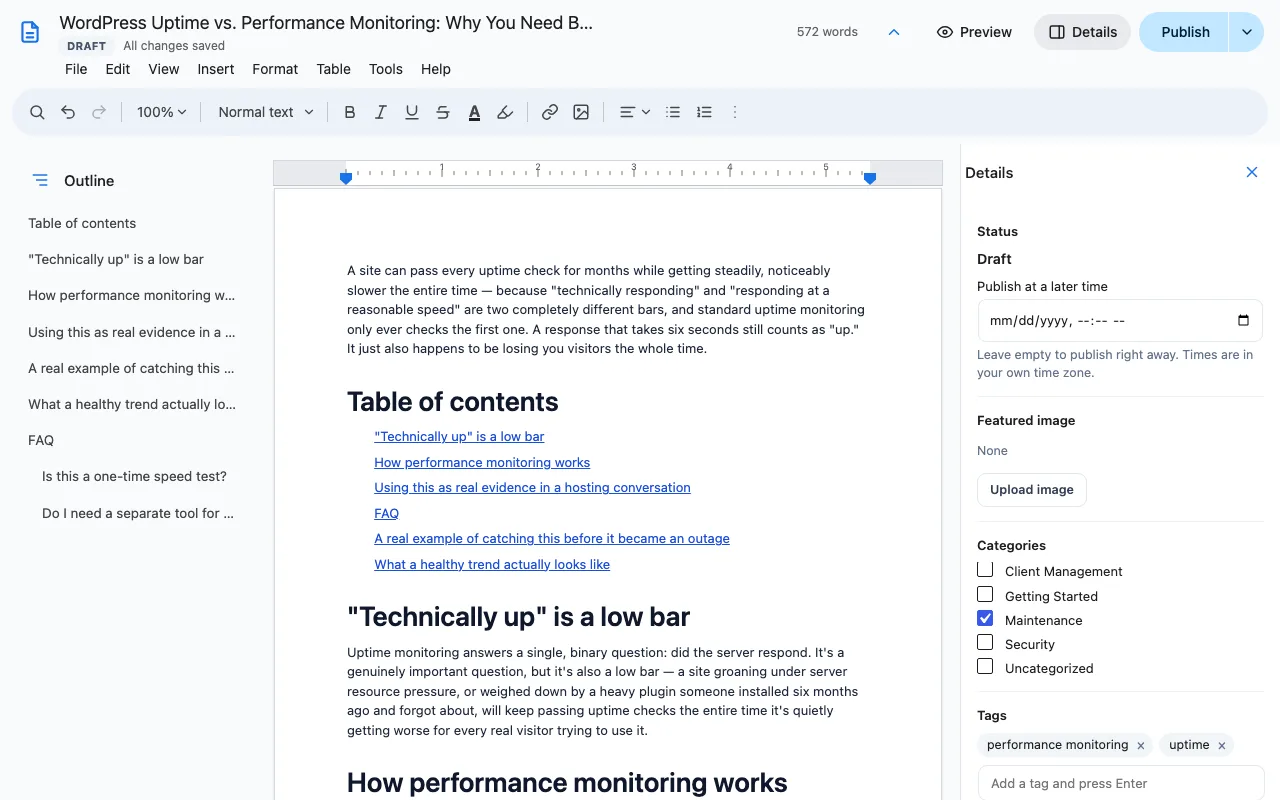
  3. Schedule (Pro)Open Details, choose a date and time, and WordPress publishes the post then.
  4. Featured imageThe main picture of the post or page, set in Details. Your theme shows it at the top of the post and in post lists, and it appears when the link is shared on social media. It is not placed inside your text.
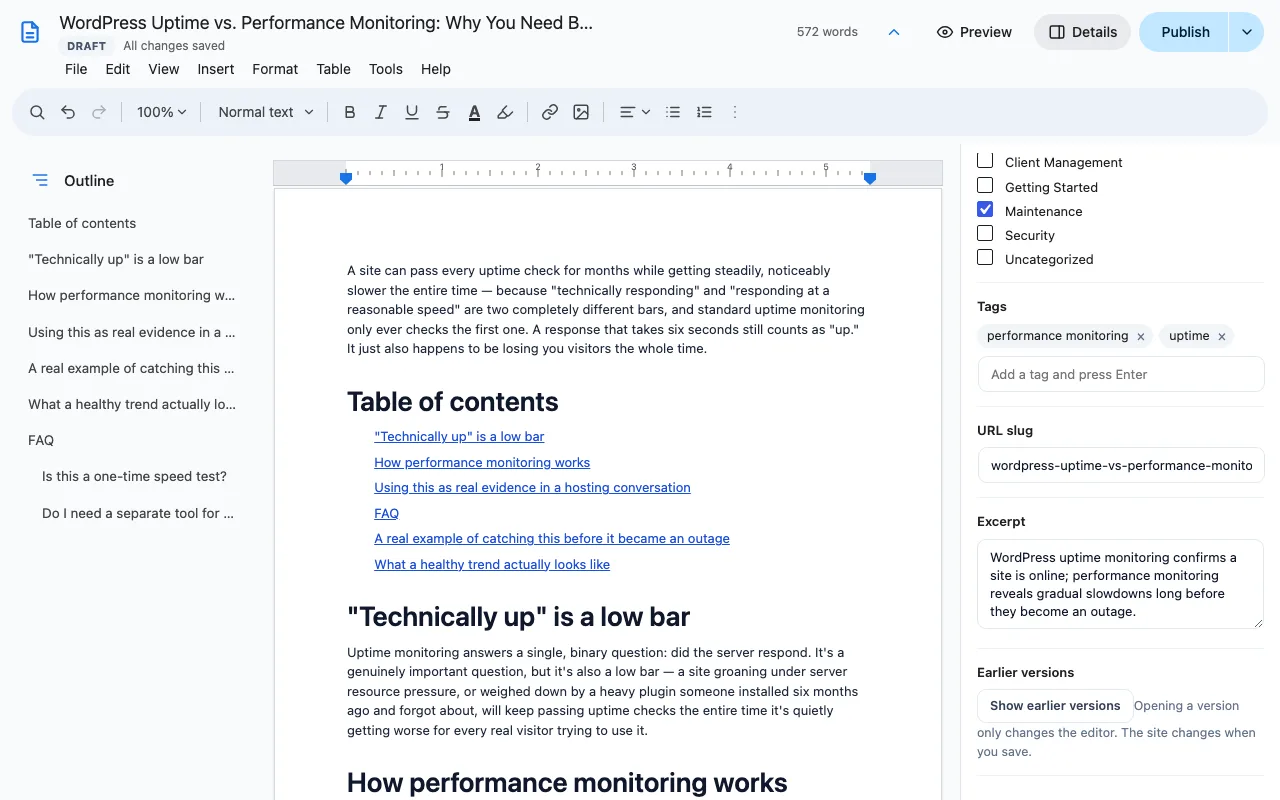
  5. Revisions (Pro)Open the revision list in Details to look at an earlier version and bring it back.
Copyroom review mode: the draft shown on the real site inside the editor, with buttons for computer, tablet and phone widths (demo site)

Preview shows the draft on your own site.

The Copyroom Details panel with the status, a Publish at a later time field, the featured image and the categories (demo site)

Details: status, schedule (Pro), image and categories.

The lower part of the Details panel: tags, URL slug, excerpt and the Show earlier versions button (demo site)

Details, lower down: tags, address, excerpt and earlier versions (Pro).

10 / Writing help (Pro)

WRITING HELP WITH
YOUR OWN AI KEY.

Proofread, rewrite, shorten, lengthen, change the tone, and suggest SEO titles, descriptions and image text.

Set it up

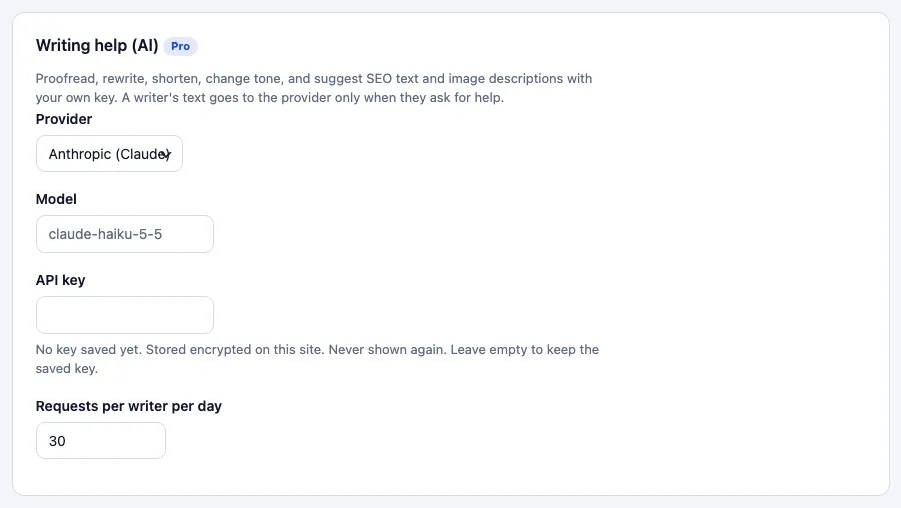
  1. Get a keyCreate an API key with Anthropic, OpenAI or Google Gemini. You pay that provider directly; we never see the key or the text.
  2. Add itSettings, Copyroom Pro (or the Copyroom home, Settings), Writing help. Pick the provider, optionally a model, paste the key and set the daily limit per writer.
  3. How it is keptThe key is stored encrypted on your site and is never shown again or sent to a browser.
  4. What is sentOnly the text a writer selects, plus the page title for context, and only when they ask for help. Links stay on your site: the AI sees a number, not the address.
  5. Always a suggestionNothing changes until the writer accepts it. Accepting is a single undo step.
The Writing help card in Copyroom Pro settings with the provider, model, API key and the daily limit per writer (demo site)

Pick the provider, paste your key and set a daily limit per writer.

11 / SEO fields (Pro)

SEO FIELDS NEXT
TO THE DRAFT.

Fill in the SEO title, description and focus keyword in the editor. Copyroom writes them to the SEO plugin your site already uses, so nothing is duplicated.

Writing checks

  1. What it isBelow the SEO fields, a plain 100 point checklist for the page: SEO title and description, the focus keyword in the right places, enough words and subheadings, links, images with alt text, and sentence length.
  2. Score bands80 and up is good, 60 to 79 needs work, under 60 is poor. It lists what to improve first and keeps what is done in a folded list.
  3. PrivateIt runs in the browser from what the writer sees. It uses no AI and sends nothing anywhere. Search engines give no score from it; it only tells you what to fix.

If your site has no SEO plugin, the fields and the checks are not shown.

11b / Buy and install Pro

BUY, INSTALL,
ACTIVATE.

Copyroom Pro is a separate plugin sold on wpwarden.io. It is not on WordPress.org.

01

Choose a plan

On the Copyroom page, under Pricing, choose 1 site, 5 sites or 15 sites and click Buy Pro. The checkout is run by Creem, our reseller: it takes the payment, adds sales tax where needed and sends the invoice.

02

Check your email

The purchase email has your licence key and a link to download the Copyroom Pro plugin (a .zip file). Both are also on your Creem order page.

03

Install the free plugin first

In WordPress go to Plugins, Add New and install Copyroom. Copyroom Pro needs it.

04

Upload Copyroom Pro

Plugins, Add New, Upload Plugin, choose the .zip file, Install Now, then Activate.

05

Activate the licence

Settings, Copyroom Pro (or the Copyroom home, Settings): paste the licence key and click Activate. The Pro features switch on at once.

06

Updates

From then on WordPress offers Pro updates on the Plugins screen like any other plugin, while the licence is active.

12 / Licence keys

HOW LICENCE
KEYS WORK.

Copyroom Pro is a yearly licence for 1, 5 or 15 sites. Each licence covers unlimited writers.

01

Buy

Choose 1 site, 5 sites or 15 sites. Payment, invoices and sales tax are handled by Creem, our reseller. You get a licence key by email.

02

Activate on a site

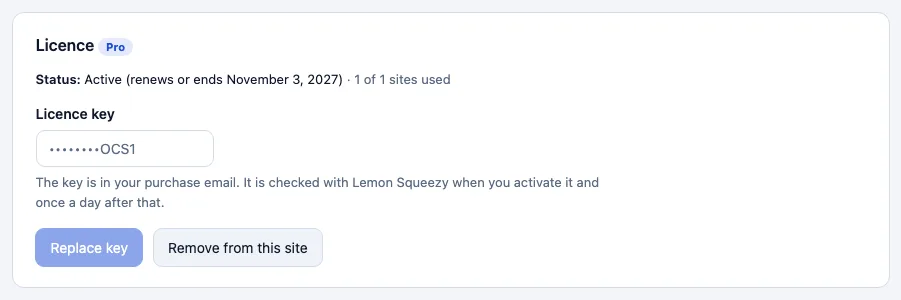
On each site open Settings, Copyroom Pro, paste the key and click Activate. That site now uses one of your sites.

03

One key, one address per site

Each activation is locked to the site's address (its domain, with or without www). A copy of the site, or its database, on another address does not run Pro and gets no updates; the settings page there says which address the key belongs to. To use Pro on that address, activate the key there; it uses another of your sites.

04

More sites

On an active licence (1, 5 or 15 sites) the Licence card shows More sites. Choose how many and pay $25 per site per year on the Creem checkout. The extra sites are added to the same key right after payment and renew with it. If you stop paying for them, the key goes back to the sites its plan covers; sites already activated keep working.

05

Checked once a day

Your site asks the WP Warden licence server (which checks with Creem) whether the key is still valid and which address it was activated for. Nothing else is sent. If the licence server cannot be reached, Pro keeps working.

06

Moving a site

On the site that holds the activation, click Remove from this site (or delete the plugin). That frees the site so you can use the key on the new address.

07

Only for Copyroom

A key for any other product is refused, and the seat it used is given back.

08

Renewal

The licence renews yearly. If it ends, Pro features stay on for 30 days so you can renew. After that Copyroom carries on as the free plugin. No content is deleted and writers are never locked out.

09

Lost the key

Find it in your purchase email or the Creem receipt page, or contact us.

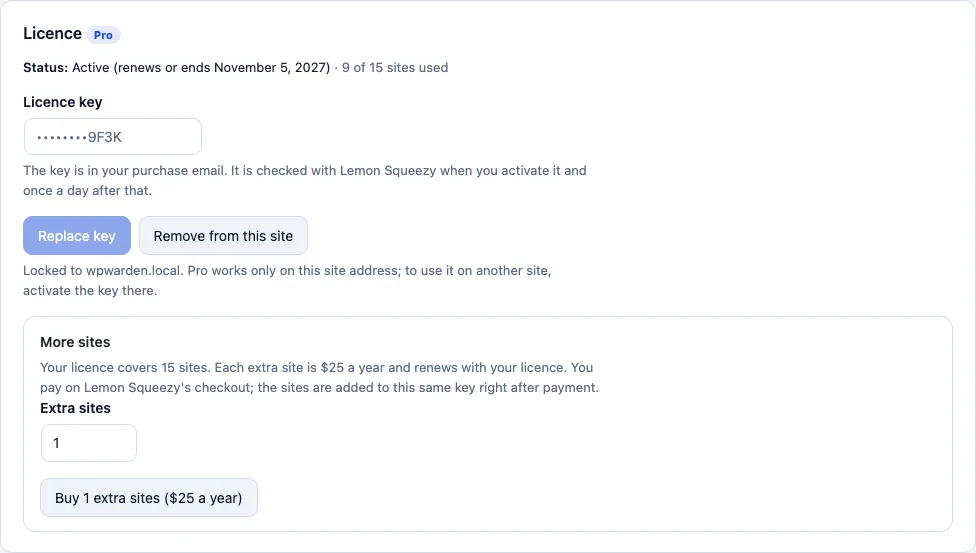
A licence covers unlimited writers, on every site it is activated on.

The Licence card in Copyroom Pro settings showing the status, the seats used, the key partly hidden, and Replace key and Remove from this site buttons (demo site)

The key is partly hidden once saved. Remove it from a site to free the site.

The Licence card of a 15-site licence: 9 of 15 sites used, locked to the site address, and a More sites box to buy extra sites at $25 a year each (demo site)

A 15-site licence: sites used, the address it is locked to, and More sites.

13 / Updates and support

UPDATES AND
SUPPORT.

Free plugin

Updates arrive from WordPress.org like any plugin. Support is the community forum.

Pro plugin

Updates are included while the licence is active. WordPress shows them on the Plugins screen like any other update; the download is checked against its published checksum before it is installed. Email support is included.

14 / Privacy

YOUR CONTENT
STAYS ON YOUR SITE.

What leaves your site

  1. Free pluginNothing. It makes no outside connections.
  2. Pro plugin: licenceThe licence key and your site address go to Creem when you activate and once a day. For updates, and when you buy extra sites, the licence key, the activation id and the site address go to WP Warden's update server, which checks them with Creem.
  3. Pro plugin: writing helpSelected text goes to the AI provider whose key you added, only when a writer asks.
  4. NeverPosts, drafts, users and passwords are never sent to WP Warden.
15 / Troubleshooting

SOMETHING
NOT RIGHT?

Check that their role is the assigned role (or they are assigned in Pro) and that Redirect is ticked. Administrators are only redirected if you tick the option.
Save Settings, Permalinks once, and check the path in Copyroom Pro settings. Reserved paths fall back to /write/.
Another plugin on your site asked for a second sign-in step. Use the standard WordPress sign-in link on the page; you land in Copyroom afterwards.
An administrator resets them in Settings, Two-step verification. They can also use a backup code.
Some sites block previews inside other pages. Use Open in a new tab.
Open Settings, Copyroom Pro and check the licence status. Pro features stay on for 30 days after a licence ends. After moving or copying a site to a new address, activate the key on the new address.
Pages from design tools other than the supported one open read-only so their layout cannot change.

STILL STUCK?
WE ARE HERE.

Pro includes email support. Free users can ask on the WordPress.org support forum.